

The Shipments tab on a trade needs the Shipments (trade tab) module. The Shipments page in the sidebar needs the Shipments module. Vessel tracking needs the Vessel Tracking module and the trade tab. The trade tab and tracking are on by default. Ask your workspace admin.
A trade’s shipments
Open a trade and choose the Shipments tab. Each row is a vessel, truck or other movement, with its B/L number, type, status, route, quantity, documents and discrepancies. Containers sit under their vessel, on that shipment’s Cargo tab. Click a row to open the shipment. Its menu also offers Unlink from trade, which for a vessel unlinks its containers too.Add a shipment to a trade
- On the trade’s Shipments tab, click Add shipment.
- To use an existing shipment, pick it under Link an existing shipment (search by B/L, reference or vessel). It keeps its other trades. To start a new one, click Create a new shipment and fill in the form.
- Click Attach.
All shipments
Shipments in the sidebar lists every cargo movement across your trades.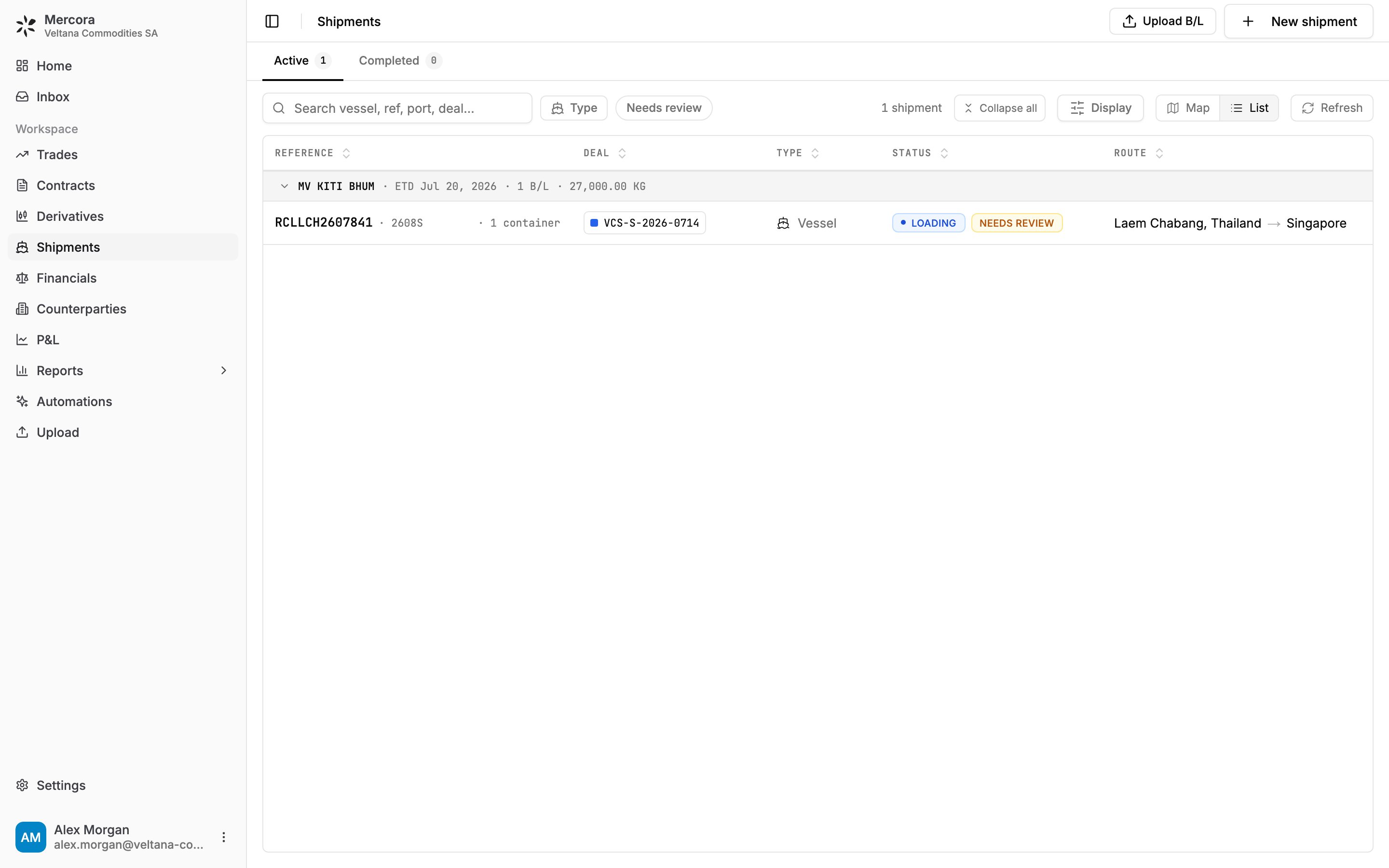
The Shipments page in List view, grouped by vessel: B/L RCLLCH2607841 on KITI BHUM, loading at Laem Chabang for Singapore.
A shipment’s page
A shipment has four tabs: Overview (route map and tracking), Documents, Discrepancies (choose Keep doc value or Keep shipment value for each) and Cargo (one row per container, with whether it’s On packing list). In the right-hand panel, add or remove linked trades in the Trades card. Click the status pill to move the shipment along Planned, Loading, In transit, Arrived and Delivered, or click Mark delivered and enter the delivered date.Needs review
A shipment is flagged when:- its quantity is above 150,000 MT, or differs from the contract by more than 10%;
- another shipment has the same B/L number;
- a late B/L isn’t confirmed by the vessel’s position history;
- the vessel’s route doesn’t match the ports on the B/L;
- the vessel couldn’t be identified for tracking.
Vessel tracking
Mercora follows each vessel’s AIS position, the signal ships broadcast with their position, speed and heading. Positions refresh on a schedule; Refresh checks now. The tracking line shows the last report, speed, heading, next port and ETA, or one of these states:- No AIS fix: no position yet.
- Fix not matched to this B/L: the vessel seems to be on another voyage, so it isn’t plotted.
- Not tracked · container B/L: containers, and vessels carrying containers, aren’t tracked individually.
- Tracking stopped · assumed delivered: see below.
Next steps
- Trade financials: record the invoices and payments that settle the cargo.
- Discrepancies: resolve differences between shipping documents.