

Needs the Counterparties module. Ask your workspace admin. With it off, buyers and sellers are plain names typed on contracts and invoices.
Find a counterparty
Open Counterparties in the sidebar. Tabs filter by role (Customers, Suppliers, Brokers, Banks), KYC due shows counterparties whose KYC re-check date has arrived, and search matches name or country.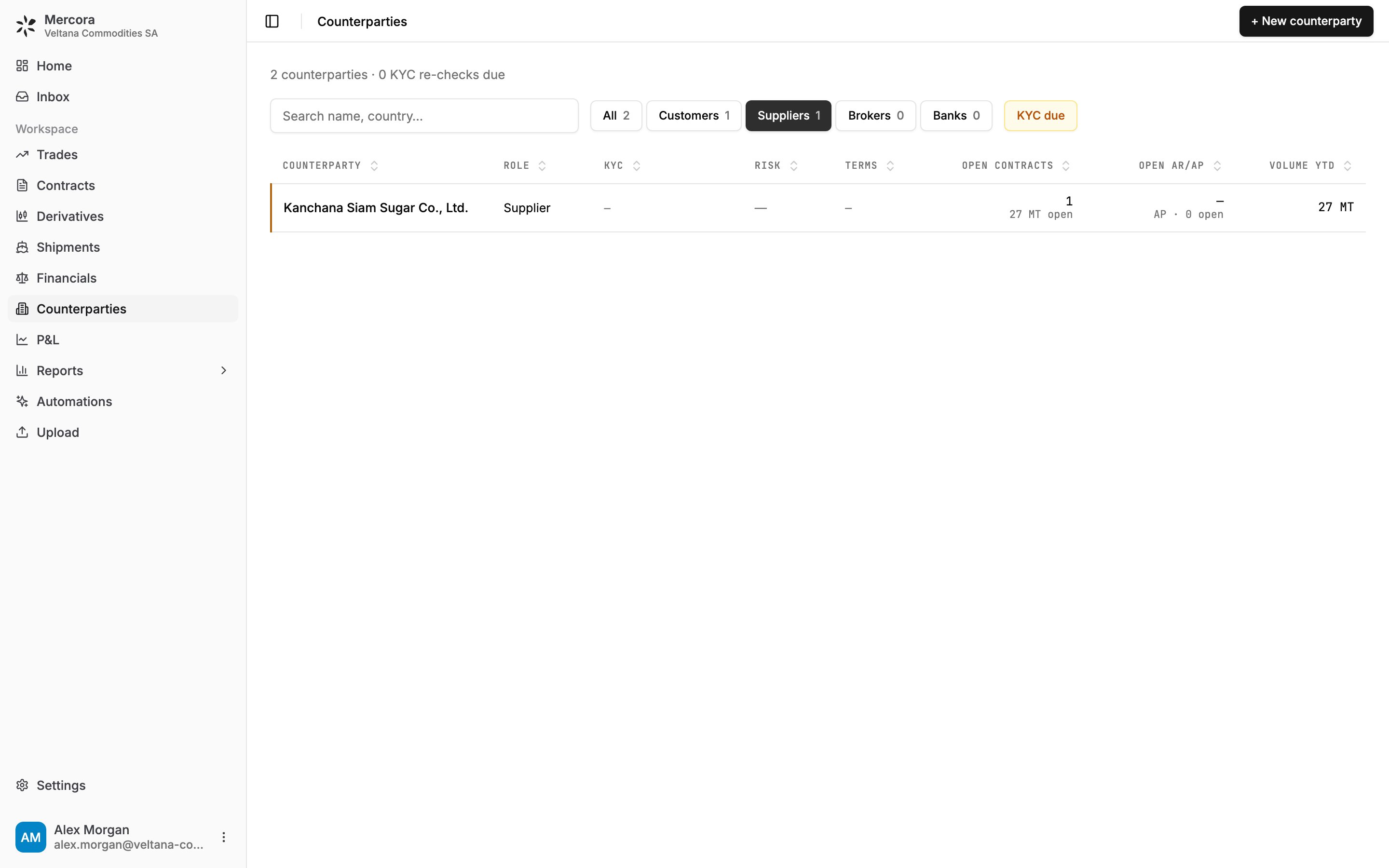
The Suppliers tab for Veltana Commodities SA: Kanchana Siam Sugar Co., Ltd. with one open contract for 27 MT.
Add a counterparty
- Click + New counterparty.
- Enter the Name and Role. KYC (know your customer) details, trading terms, credit limit and document templates are optional.
- Save. Change anything later with Edit.
A counterparty’s page
The header has Statement, Edit, New contract (for customers and suppliers, prefilled with this counterparty) and a … menu. For customers and suppliers, the tiles show:- AR Open or AP Open: the outstanding balance and how many invoices are open.
- Overdue: the late amount and the worst invoice’s days late.
- Exposure: open AR or AP plus contract value not yet invoiced. For example, before its invoice arrives, all of Kanchana Siam Sugar’s USD 14,256.00 purchase contract VCS-P-2026-0688 counts as not yet invoiced.
Link documents to a counterparty
On a trade’s legs and on an invoice, click Link (or Change) next to the buyer or seller to connect the name to a counterparty record. Search for one, create one, or skip. If the name is spelled differently, for example “KANCHANA SIAM SUGAR CO LTD” for Kanchana Siam Sugar Co., Ltd., Mercora remembers the spelling and links the next document carrying it exactly.Merge duplicates
- On one record, open … → Merge with… and pick the other. Only counterparties with the same role are offered.
- For each field, click the value to keep, or type a new one. The record on the right survives; Switch sides swaps them.
- Check the open contracts, open invoices, accounts and contacts that will move. Contacts whose email already exists aren’t duplicated.
- Type merge and click Merge counterparties.
Send a statement
- On the counterparty’s page, click Statement.
- Check each currency tab: open invoices by due date, the outstanding amount, a running balance and the Closing balance.
- Click Download PDF.
Next steps
- Contracts: purchase and sales contracts with your counterparties.
- Financials: every invoice and what’s outstanding.