

Before you start: reviewing documents needs the Document inbox module, and approving needs permission to edit documents. View-only roles see the same panels without the buttons. Workflows such as deal capture or hedging keep their place in the Inbox even if the module is off.
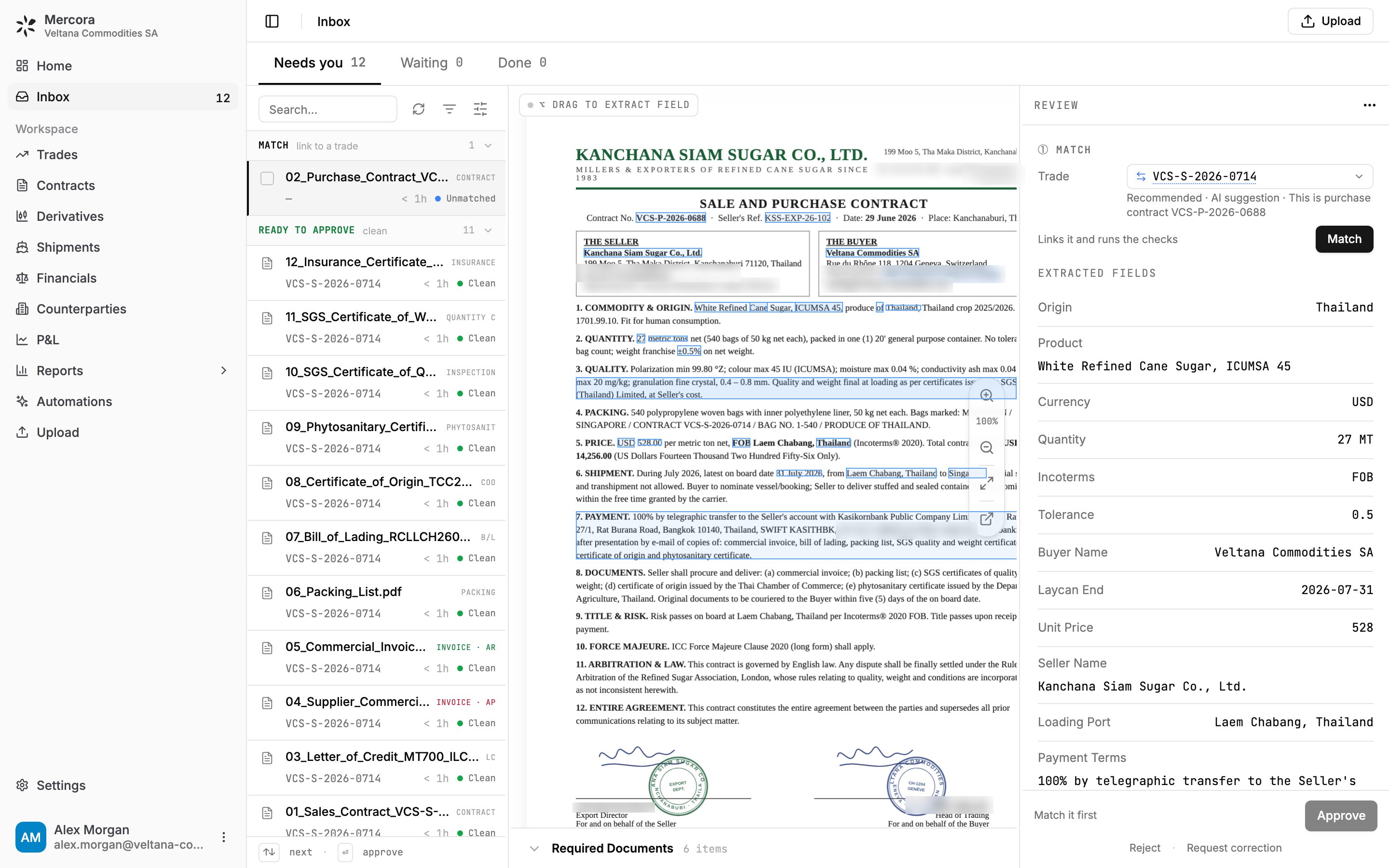
The Inbox for sugar trade VCS-S-2026-0714: eleven documents ready to approve, and purchase contract VCS-P-2026-0688 waiting to be matched.
How it’s laid out
- Tabs: Needs you (you’re the next step), Waiting (Mercora is processing, or a reply is pending), Done (approved, closed or rejected) and Filtered (set aside as not trade-related; only shown when not empty). Items move between tabs on their own.
- The rail on the left lists items. In Needs you they’re grouped as Recover (failed), Match, Review (open discrepancies or a pack to split), Decide (workflow proposals) and Ready to approve. Each row shows a status, such as Unmatched, 2 disc. or Clean.
- The document in the middle. Tables Mercora read, such as invoice charge lines, sit in a bar under it that you can expand and edit.
- The review panel on the right, with Approve at the bottom.
Reviewing a document
Open a document from the rail and work down the review panel:1
Match
The Trade field shows the trade, or Mercora’s recommendation. Click Match to link it and run its checks. Until then, Approve is unavailable. See Matching.
2
Shipment
For a B/L, packing list or other shipping document, check the shipment it describes. This step only shows when your role can see shipments.
3
Discrepancies
Decide on each open difference with the trade. See Discrepancies.
4
Fields
Check the parties, quantities, prices, dates and ports Mercora read. Click a field to highlight it on the document. An amber dot means Mercora was less sure: check those first.
Correct a field
- Edit it. Double-click the value (or Tab to it and type), then press Enter. The field shows who changed it, and revert goes back to what Mercora read. Mercora re-checks the document, so discrepancies can appear or disappear. Corrections survive reprocessing.
- Read it from the page. Hold Option (Alt on Windows) and drag a box around the value. Mercora reads it and suggests a field; check it and click Apply. Click into the notes box first to save the passage as a note instead.
- Pick a reading. When a number could mean two things, for example “745,087”, Mercora shows both readings under the field and marks the one that fits the deal. Click the right one.
Approving
Click Approve or press Enter. The line beside the button says what will happen, for example “Links it to the trade · accepts 2 differences”.- Approve is unavailable until the document is matched and checked.
- A document on no trade shows Approve without a trade and asks you to confirm. Enter never approves it.
- Approving accepts the document’s remaining open trade discrepancies, so review them first.
Contracts and recaps
Approving a contract or recap can create or change a trade, so it opens a short flow:- Where should this document go? Choose Create a new trade, Match to existing trade or Don’t attach a trade. Mercora marks its pick Recommended. With the Contracts module, Create contract replaces Create a new trade.
- Should this document create a trade leg? Create a Purchase or Sale leg, link to an existing one, or Save directly to trade. Check the leg’s buyer, seller, quantity and price.
- Check the summary on the right and click Approve document.
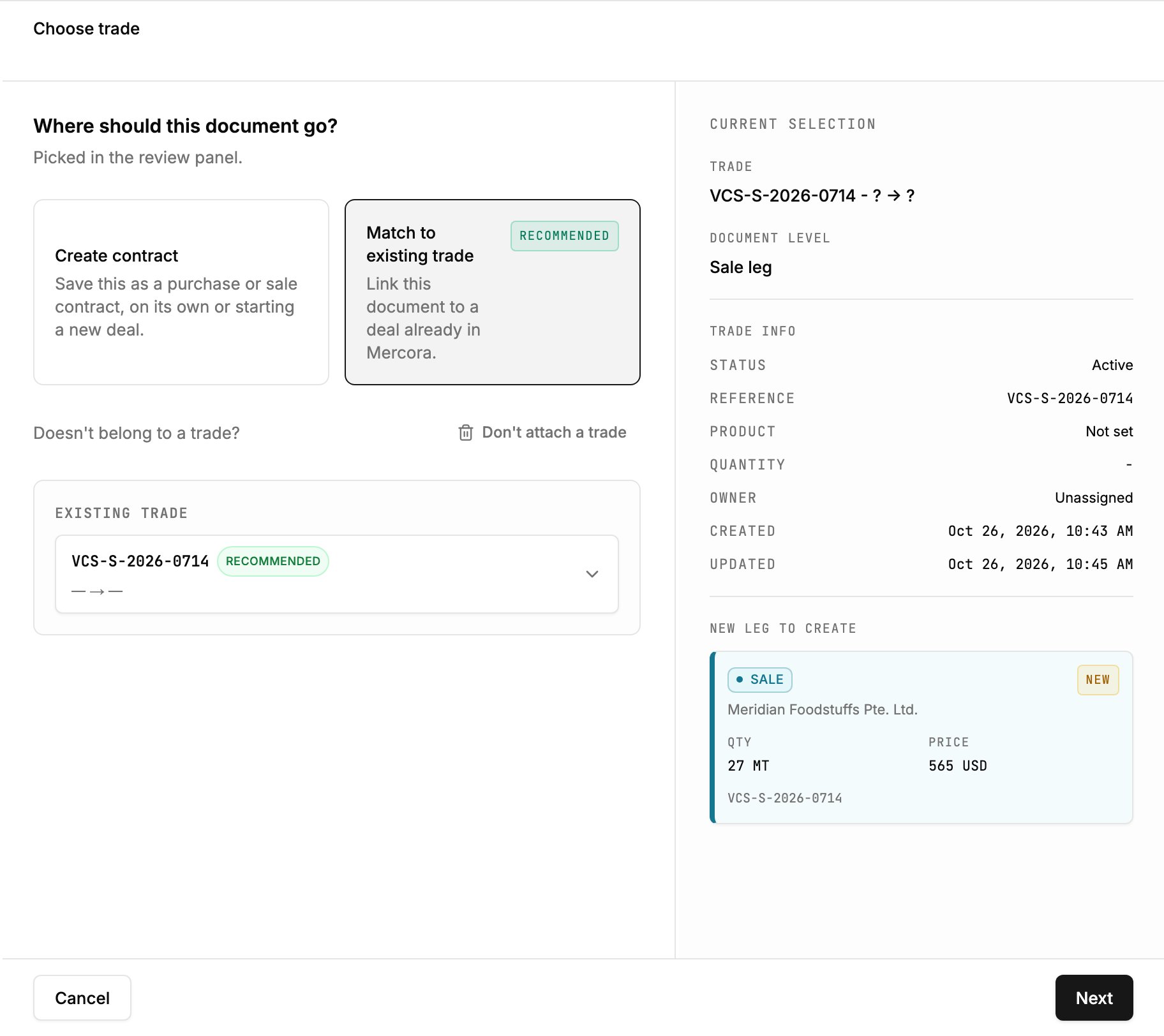
Approving sales contract VCS-S-2026-0714: Mercora recommends Match to existing trade.
Rejecting
For a draft or a copy you don’t need, click Reject, then Confirm. It moves to Done as Dismissed. The trade isn’t changed.Request a correction
When a document is wrong at the source, ask the counterparty to fix it:- Click Request correction under Approve.
- Check the draft. It lists the discrepancies you Declined as corrections required, plus open ones.
- Check To (the original sender, if the document came by email) and edit the message, or click Regenerate.
- Click Open email draft. It opens in your own mail program, also copied to your clipboard. Send it from there.
The ⋯ menu
At the top of a document: Download (the original file), Reclassify… and Full Reprocess (see Processing), Reassign to Trade, Change shipment and Delete from Record. All but Download need permission to edit documents.Keyboard shortcuts
Other items in the Inbox
Workflows your workspace uses also send proposals here for a person to approve, change or decline: deal terms, hedge requests and broker fills, freight rate changes, vessel nominations, automation approvals and syncs to external systems. Filter by Type › Actions to see only these.Next steps
- Discrepancies: decide what each difference with the trade means.
- Walkthrough: follow one trade from its first document to its P&L.