

Create a key
1
Name the key
In the API keys section of Settings → API, enter a name of up to 80 characters, for example “Origin ERP”.
2
Choose its scopes
Every scope is ticked to start with. Untick anything this system shouldn’t reach; a key needs at least one.
- Hedge requests: read hedge books and positions, send hedge requests into the Inbox, and check where they stand.
- Automations: start runs of automations set to run from the API. Anything a run would change still waits for a person.
3
Click Create key and copy it
Copy the key (it starts with
mk_) and store it somewhere safe, such as your system’s secret store. Click Done.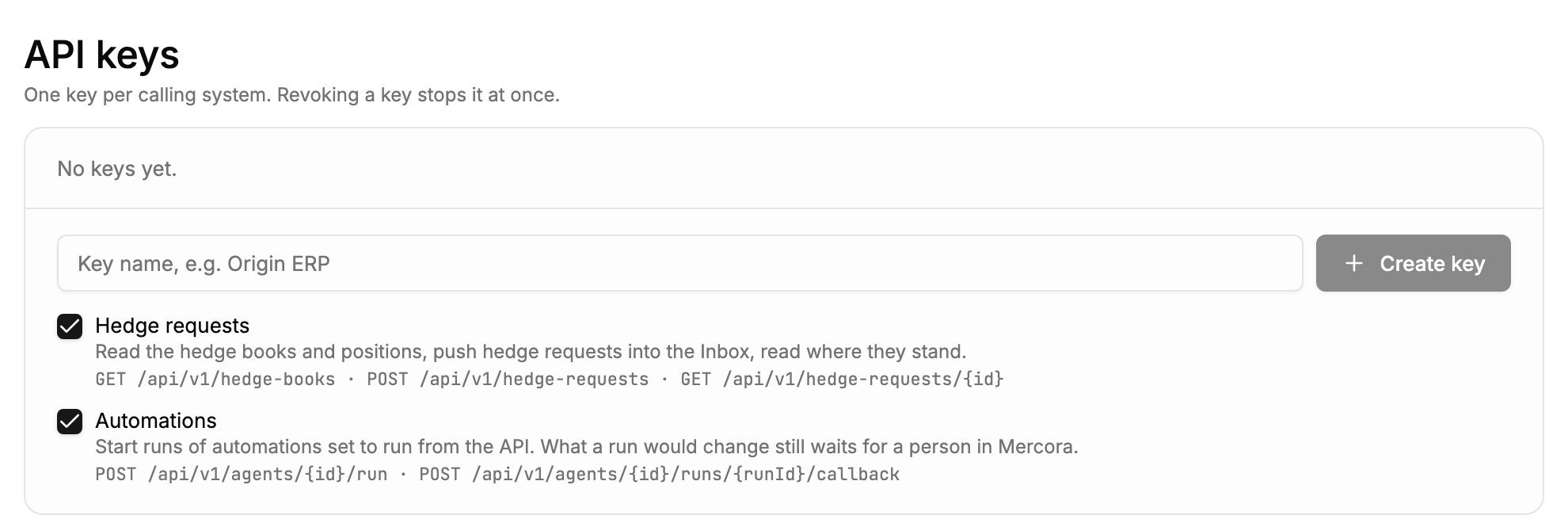
The API keys section before any key exists: name the key, keep or untick its scopes, then click Create key. Each scope lists the endpoints it opens.
Review and revoke keys
The API keys list shows every key, active first, with its name, an Active or Revoked badge, the key’s first characters, its scopes, and when it was created, last used (or Never used) and revoked. To revoke a key, for example when its system is retired or the key may have been exposed, click Revoke next to it and confirm. Requests with it fail from then on. Revoking can’t be undone; the key stays in the list as Revoked for your records. To restore access, create a new key.Next steps
- API introduction: authentication, scopes, errors and idempotency for developers.
- Automations: set an automation to run from the API.