

Set up your account
1
Open your invite link
The Welcome to Mercora page opens. Click Continue.
2
Set a password
Enter a password of at least 8 characters under New password and Confirm password, then click Set password & continue. Mercora opens the app.
3
Turn on two-factor authentication (optional)
Go to Settings → Account. Next to Authenticator app, click Enable, scan the QR code with an authenticator app, enter the 6-digit code and click Verify & Enable. From then on, Mercora asks for a code after your password. To turn it off, click Disable in the same place.
Upload and approve your first document
1
Upload
Click Upload in the sidebar and drop in your files, for example a shipment’s contract, B/L and invoices. Leave Document Type on Auto-detect and leave the trade empty: Mercora works out both. Click the upload button, which counts your files (for example Upload 3 Documents). See Uploading documents for file types and limits.
2
Open the Inbox
Click Inbox. Documents show under Waiting while Mercora reads them, then move to Needs you.
3
Review and approve
Open a document. The original is in the middle; the panel on the right shows its trade, its checks and the fields Mercora read. Correct anything wrong, then click Approve. Nothing reaches your trade records until you do.
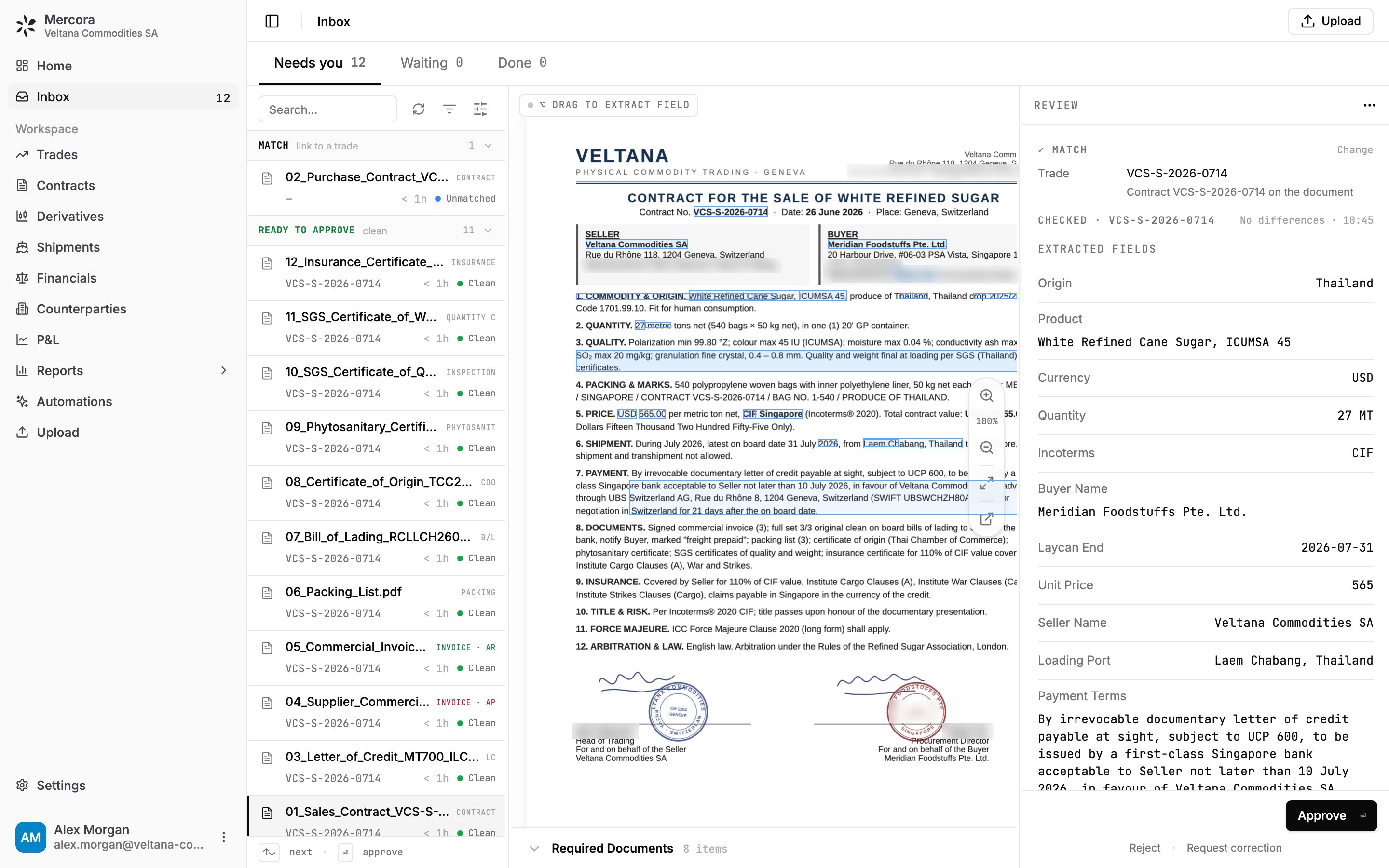
Reviewing a sales contract: the original in the middle, its trade, checks and fields on the right.
Next steps
- Walk through a trade: follow one trade from its documents to the P&L.
- The Inbox: everything about reviewing and approving.