

Needs the Trades module, which is on by default. New deal also needs the Contracts module, and Book and Entity need the P&L module. Ask your workspace admin.
Find a trade
Open Trades in the sidebar.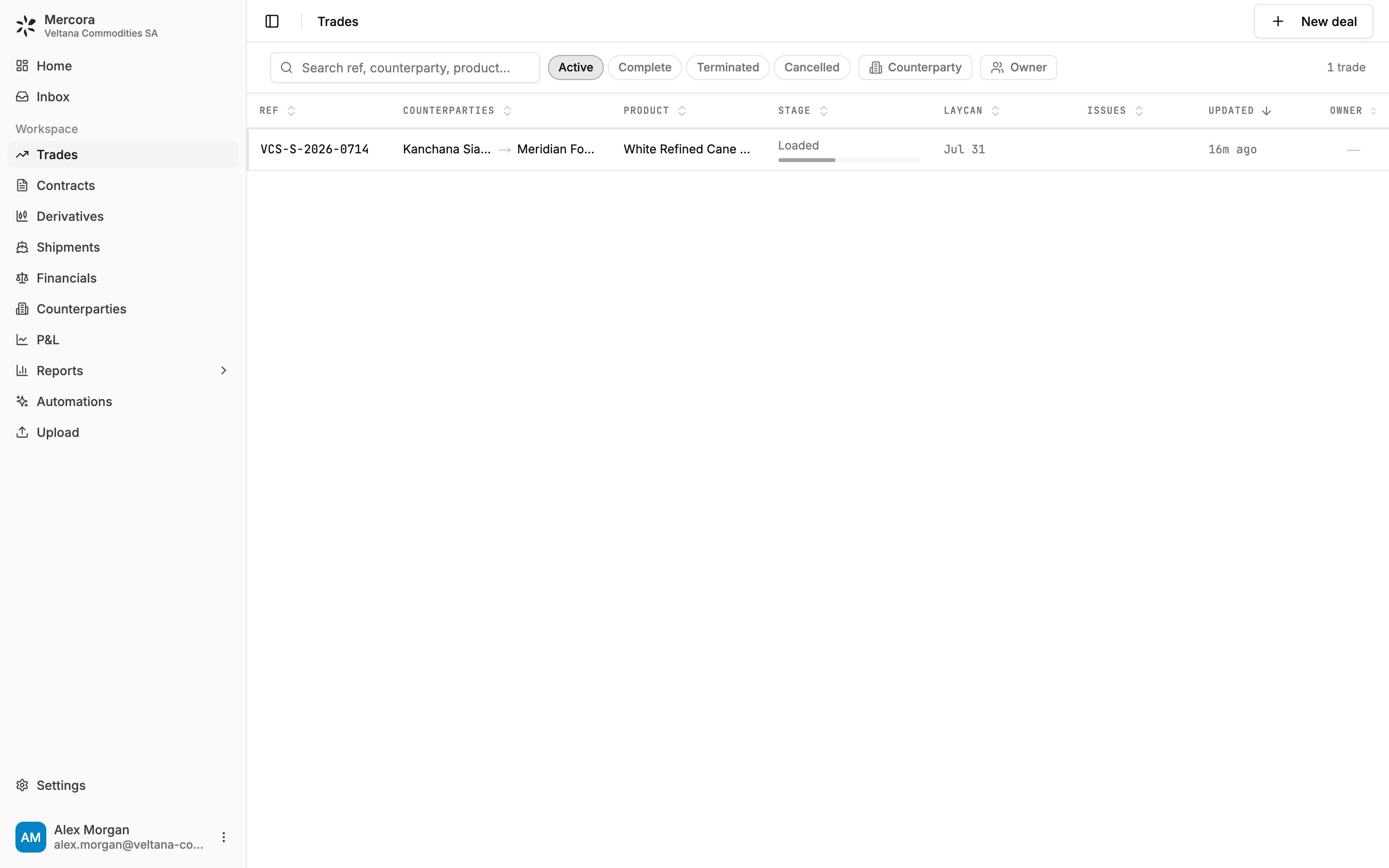
The Trades list with VCS-S-2026-0714 at the Loaded stage, bought from Kanchana Siam Sugar and sold to Meridian Foodstuffs.
How trades are created
Mercora doesn’t create trades on its own. Someone on your team starts one:- From the Inbox, by approving a contract or recap that doesn’t belong to an existing trade. See Inbox and Matching.
- From Deal Capture, when deal terms from email or chat are confirmed in the Inbox. See Deal Capture.
- With New deal, from contracts you already have (below).
Create a deal from contracts
- On Trades, click New deal.
- Under Contracts, search for the purchase and sale contracts, or create one in place. Each side can hold several contracts. A new second side is prefilled from the first.
- Check the Deal ref (filled from the contract numbers), pick an Owner and, if you use books, a Book.
- Click Create deal. With both sides linked, the dialog first previews the quantity, laycan and margin per unit.
Read a trade
Click a row to open the trade. The header shows its status and whether the cargo is Insured. If you can edit trades, you also get Edit, Mark complete (or Reopen) and a … menu to terminate, cancel or delete. Depending on your role and modules, the trade has up to five tabs:- Overview: the P&L card, the legs, short status Updates (On track, At risk, Off track) and Notes.
- Documents: every document on the trade, plus the Expected Documents checklist.
- Discrepancies: differences between the trade’s documents and contracts. See Discrepancies.
- Financials: invoices, payments and the cost plan. See Trade financials.
- Shipments: the movements carrying the cargo. See Shipments.
The P&L card
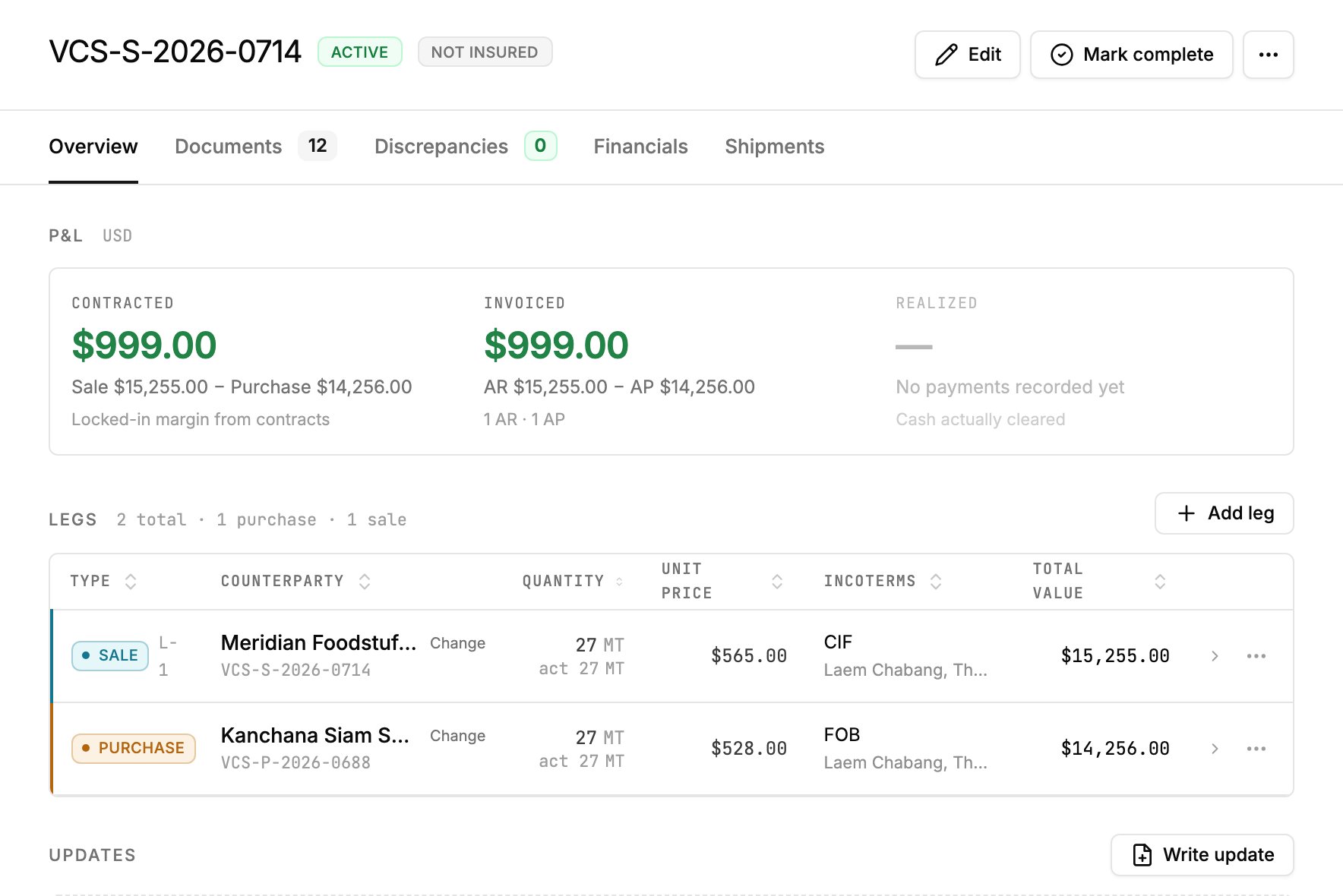
VCS-S-2026-0714: contracted and invoiced margin are both $999.00; nothing is realized until payments are recorded.
All three are in your reporting currency; Invoiced and Realized need Financials access. If an amount has no exchange rate, the card says how many items it skipped.
On the sugar trade, Contracted and Invoiced both read $999.00 (sale $15,255.00 minus purchase $14,256.00). That’s gross margin: freight and insurance count only once their invoices are filed on the trade.
Legs and documents
A leg is one side of the deal: a purchase or sale contract. Open a leg to see its terms and set the quantity actually loaded, or click Use loaded to take it from the trade’s shipments. On Documents, Upload adds files. Generate builds the Expected Documents checklist from the documents-required clauses of the contract and letter of credit, and approved documents tick it off.The properties panel
The panel on the right holds the trade’s key facts. Three of them you may want to change:- Lifecycle stage (Contract, Pre-ship, Loaded, In transit, Delivered, Complete) is read from the trade’s shipments or cargo documents, for example “From B/L”. Pick a stage to override it; Use the evidence hands it back.
- Book is where the deal sits on the P&L, matched from a code at the end of its reference unless someone picks one. Entity is your own company on the deal, read from the contract. Admins set up books and legal entities.
FX overrides
When a trade involves a currency other than USD, FX overrides lists each currency’s rate. Click one to pin your own, for example a hedged rate, entered as that currency’s rate to USD; Use live removes it. The override applies everywhere the trade is converted: the Overview card, the Financials tab and the P&L.Close out a trade
Next steps
- Trade financials: record invoices and payments, and plan costs.
- Shipments: follow the cargo.