

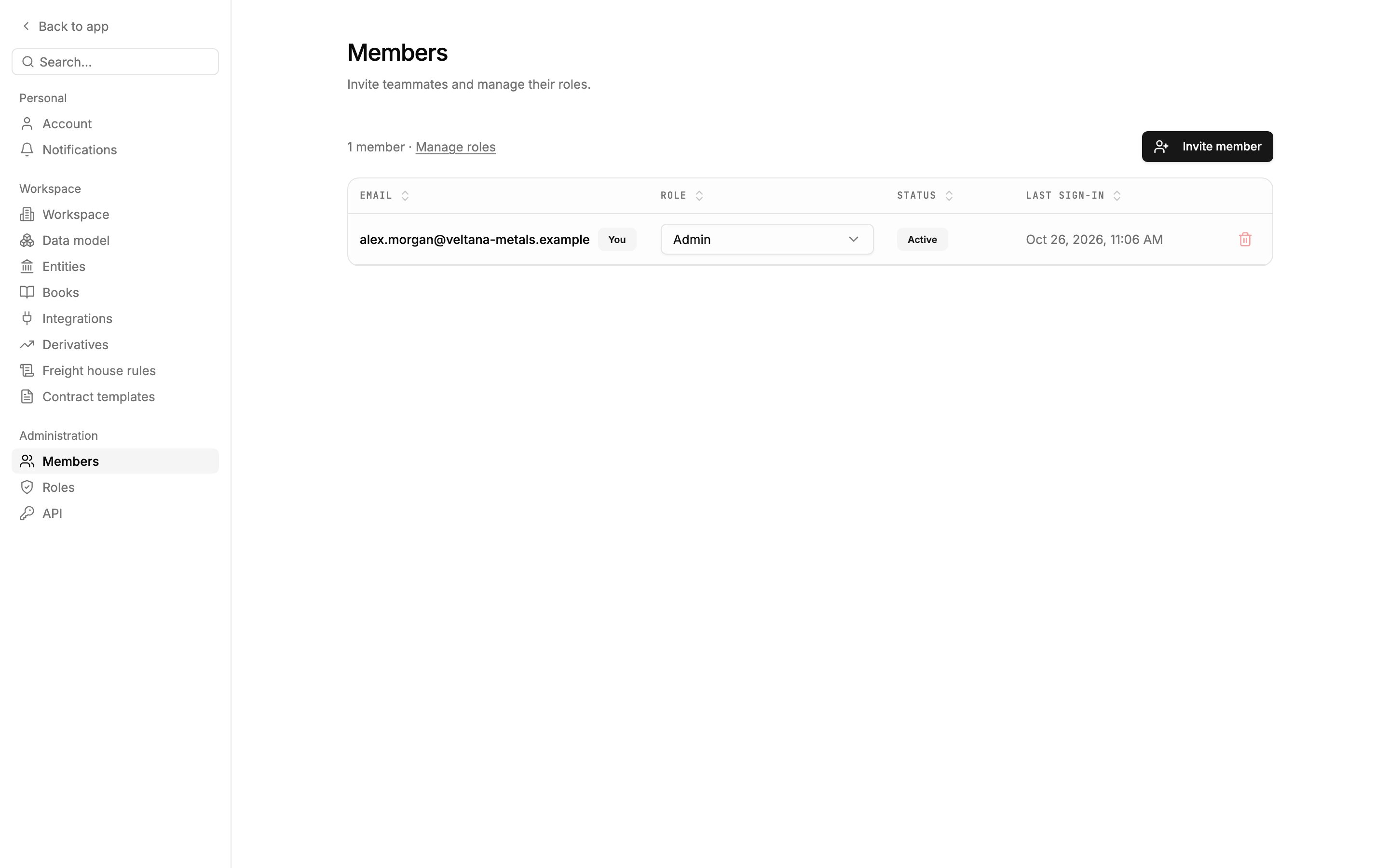
Settings → Members with one active admin. Manage roles opens the roles, and Invite member starts an invite.
Invite a member
1
Click Invite member
Go to Settings → Members and click Invite member.
2
Enter their details
Enter their work Email and choose a Role. You can set up roles before or after inviting.
3
Click Send invite
Mercora emails them the invite, naming you as the person who invited them. Replies reach you. An Invite emailed window shows their link in case the email doesn’t arrive; copy it and send it yourself if needed. Click Done.
Change a member’s role
In the member’s Role column, choose the new role. The change is saved straight away. To see or edit what each role allows, click Manage roles. Admins can change anyone’s role. Members with User access at Edit can’t change their own role, an admin’s role, or the role of anyone else with User access at Edit, and can’t hand out an admin role or a role with User access at Edit. The list only offers roles they’re allowed to give.Remove a member
Click the delete icon at the end of the member’s row, then Remove to confirm. They lose access immediately, and this can’t be undone: to give them access again, invite them again. You can’t remove yourself.The last admin is protected
A workspace always keeps at least one admin, so Mercora won’t let you demote or remove the last one (“Promote another member first.”). To hand over administration, give another member an admin role first.Next steps
- Roles and permissions: what each role allows, and how to create your own.
- Quickstart: send this to new members.