Veltana Commodities SA buys white refined cane sugar from a Thai mill and sells it to a food distributor in Singapore. Trade VCS-S-2026-0714 is open in Mercora with nothing but its reference.
Purchase
Sale
Counterparty
Kanchana Siam Sugar Co., Ltd.
Meridian Foodstuffs Pte. Ltd.
Contract
VCS-P-2026-0688
VCS-S-2026-0714
Price
USD 528.00/MT FOB Laem Chabang
USD 565.00/MT CIF Singapore
Value
USD 14,256.00
USD 15,255.00
The cargo is 27 MT in one container on KITI BHUM, B/L RCLLCH2607841, paid under L/C ILC26SG04582.
These screens come from a workspace with every module on. If Shipments, Contracts or P&L is missing from your sidebar, see Modules.
Upload the trade’s twelve documents (contracts, L/C, invoices, packing list, B/L, certificates and insurance), or let them arrive by email. Leave the type on Auto-detect and the trade empty. See Uploading documents.
2
Mercora reads and files them
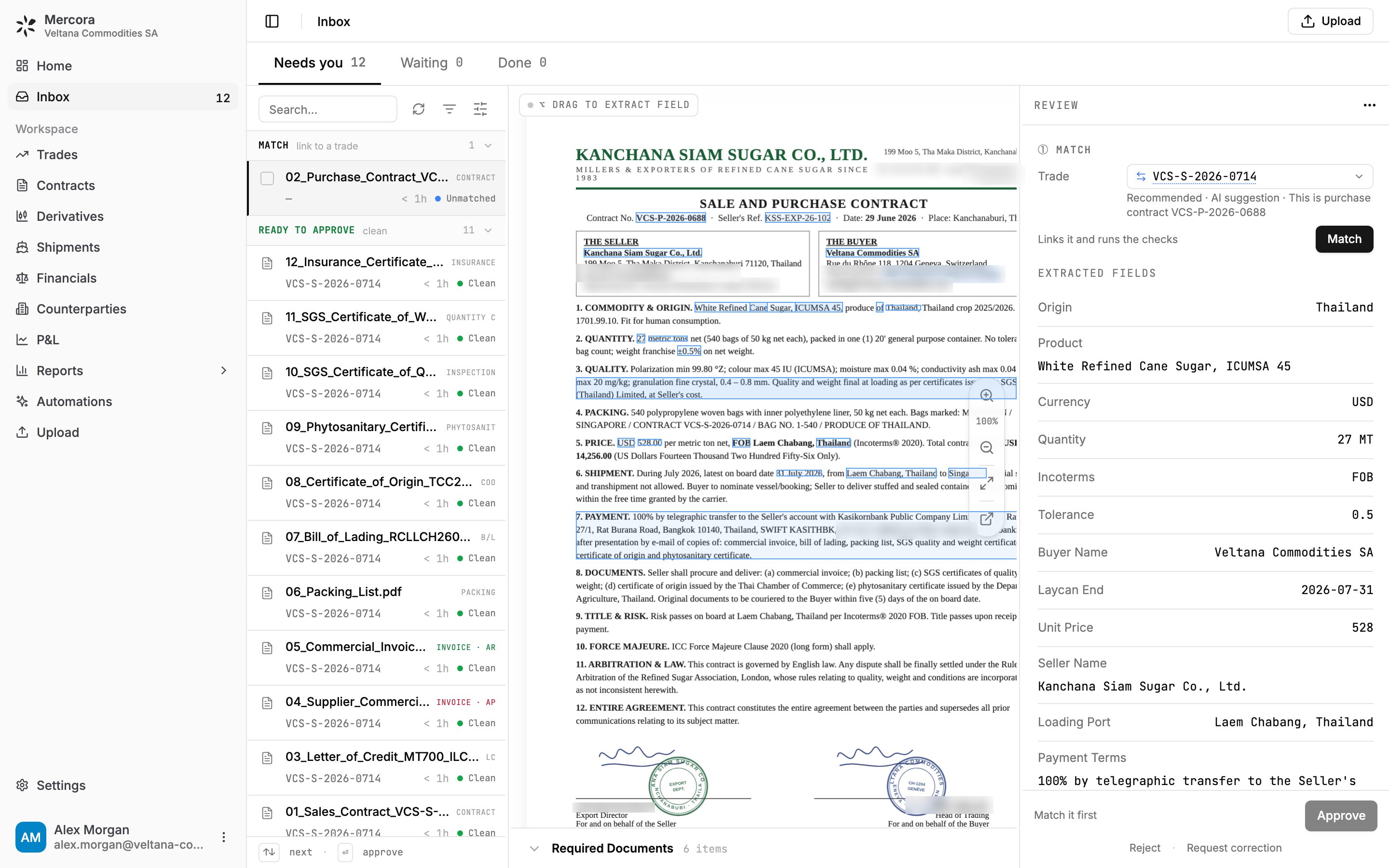
Each document lands in the Inbox under Needs you, tagged with its type, such as CONTRACT, B/L or INVOICE · AR. Eleven cite VCS-S-2026-0714, so they’re already on the trade under Ready to approve. See Processing.
The sugar trade's twelve documents: eleven ready to approve, one to match.
3
Match the odd one out
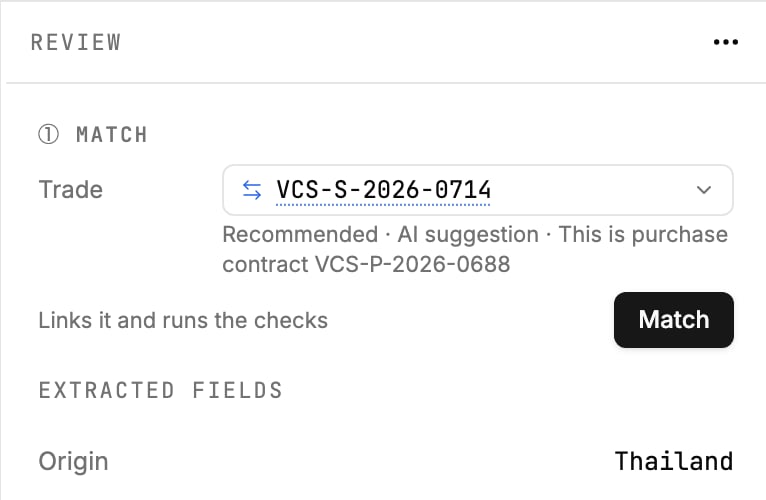
The purchase contract carries its own number, VCS-P-2026-0688, so Mercora doesn’t link it on its own. It recommends VCS-S-2026-0714 and says why. Click Match. See Matching documents to trades.
Mercora recommends trade VCS-S-2026-0714 and waits for you to click Match.
4
Review and approve
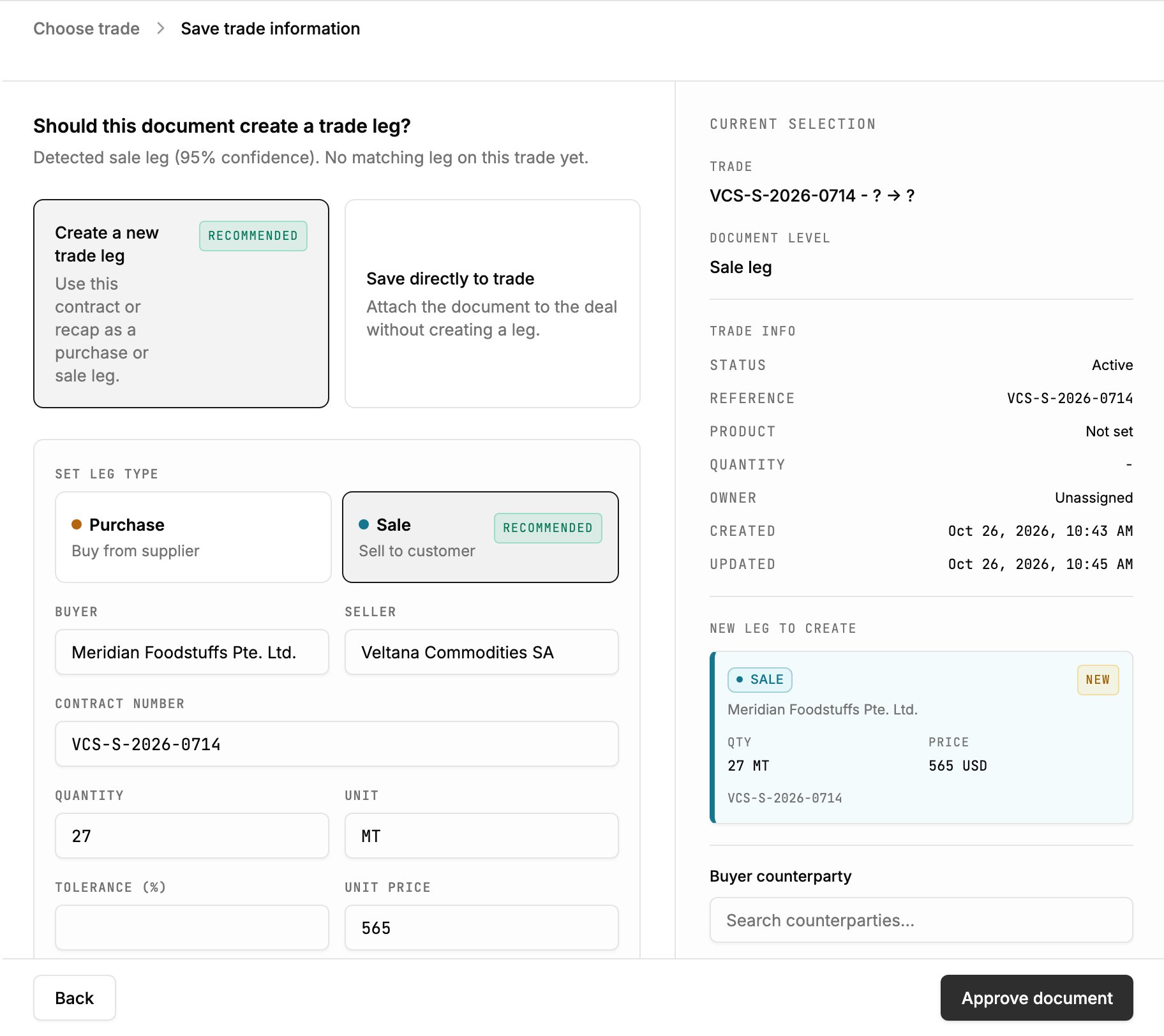
Open each document and check the fields beside the original. Click a field to find it on the page, or double-click to correct it. Approving a contract adds a leg to the trade: the sales contract adds a Sale leg of 27 MT at 565 USD, and the purchase contract a purchase leg at 528 USD. Other documents approve with Approve or Enter. See The Inbox.
Approving the sales contract creates the sale leg to Meridian Foodstuffs.
5
Mercora checks for discrepancies
Each document is checked against the trade when it’s matched, and again as others are approved. The sugar documents agree on weights, container, ports and vessel, so the trade ends with no open discrepancies. See Discrepancies.
6
Open the trade
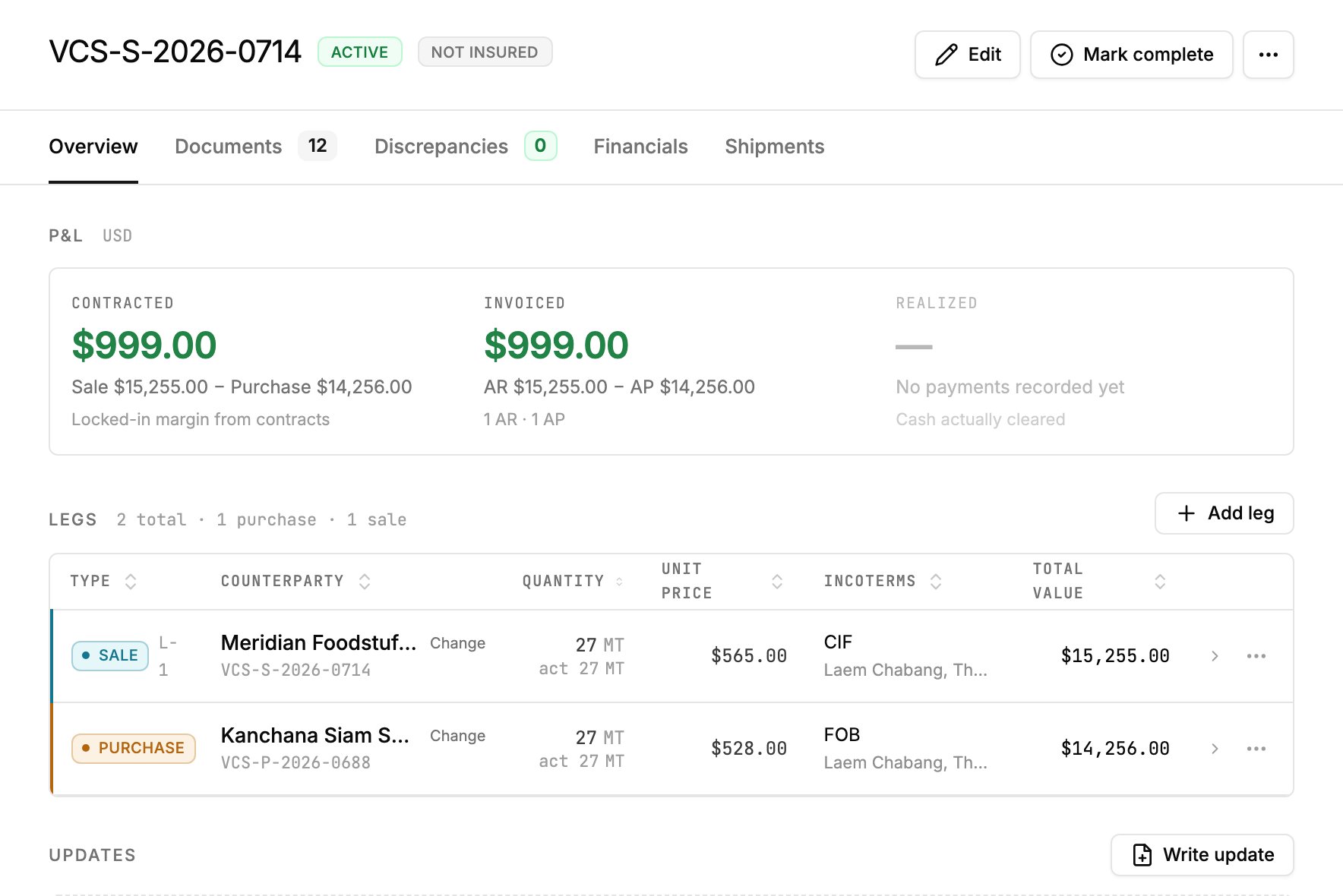
On the trade’s Overview tab, the P&L card shows Contracted $999.00 and **Invoiced** $999.00. Financials lists the two invoices and is where you record payments. Documents shows the expected-documents checklist at 10/10, and Shipments shows KITI BHUM from Laem Chabang to Singapore. See Trades overview.
VCS-S-2026-0714: $999.00 contracted and invoiced, with its sale and purchase legs.
7
Read the P&L
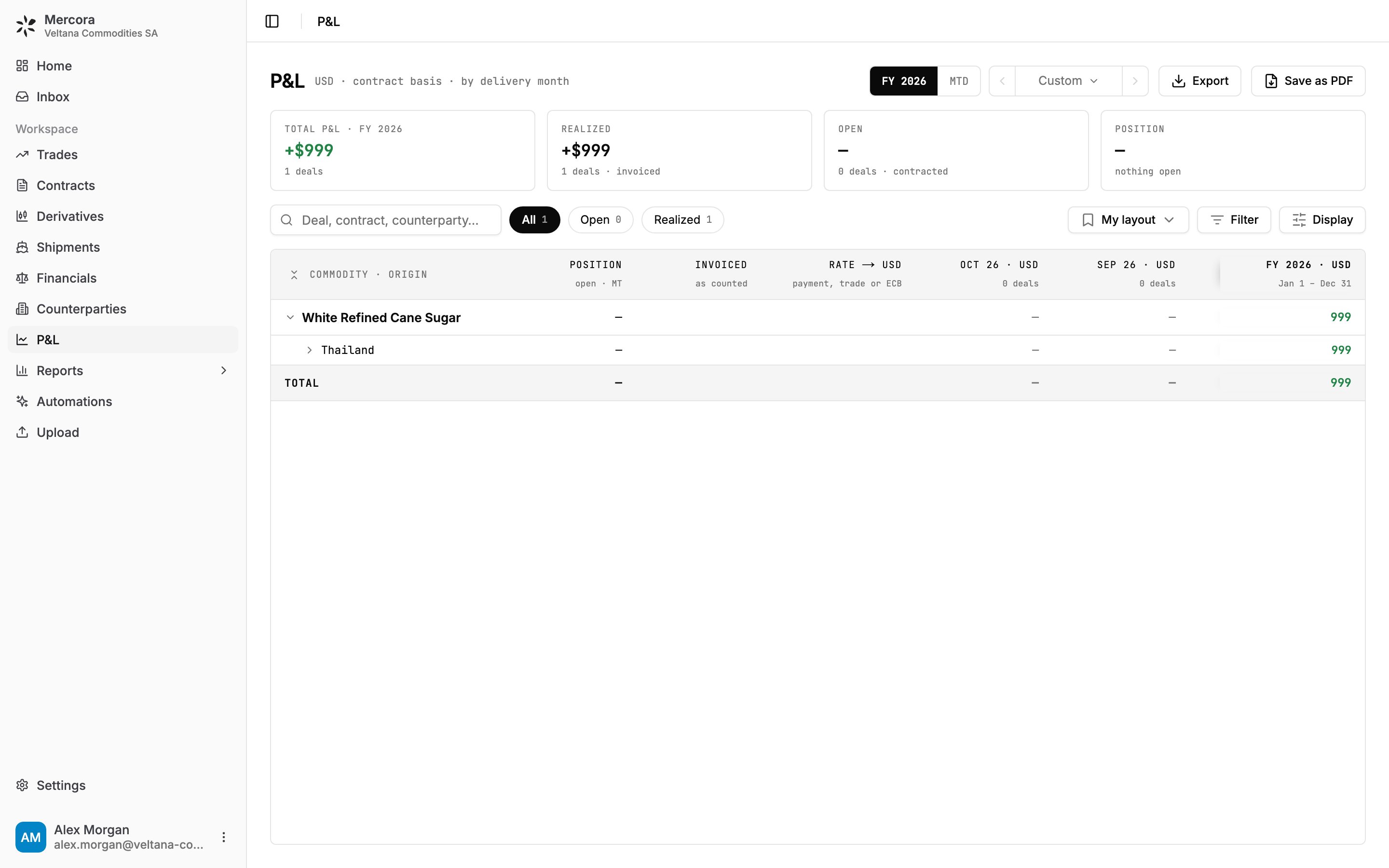
On the P&L page, the trade shows **+$999** realized on its invoices (AR $15,255.00 minus AP $14,256.00). It’s a gross margin: freight and insurance come off once their invoices are filed. See P&L.
Veltana Metals SA buys 500 MT of aluminium ingots from Altamira Metals DMCC at USD 2,540/MT and sells them to Extrunord Metallwerke GmbH at USD 2,585/MT. No trade exists yet, and two documents disagree.
Creating a contract and deal from a document needs the Contracts module. Without it, approval offers Create a new trade instead.
1
Create the trade from the purchase contract
No trade carries reference ALU-2026-0012, so Mercora recommends New trade from this contract. Click Approve, keep Create contract and Start a new deal with this contract selected, and click Approve document. Mercora opens trade ALU-2026-0012. See How trades are created.
2
Approve the sale side
Mercora now matches sales contract S-2026-0517 to ALU-2026-0012. Approving it adds the sale leg, for a contracted margin of $22,500.00.
3
Resolve the discrepancies
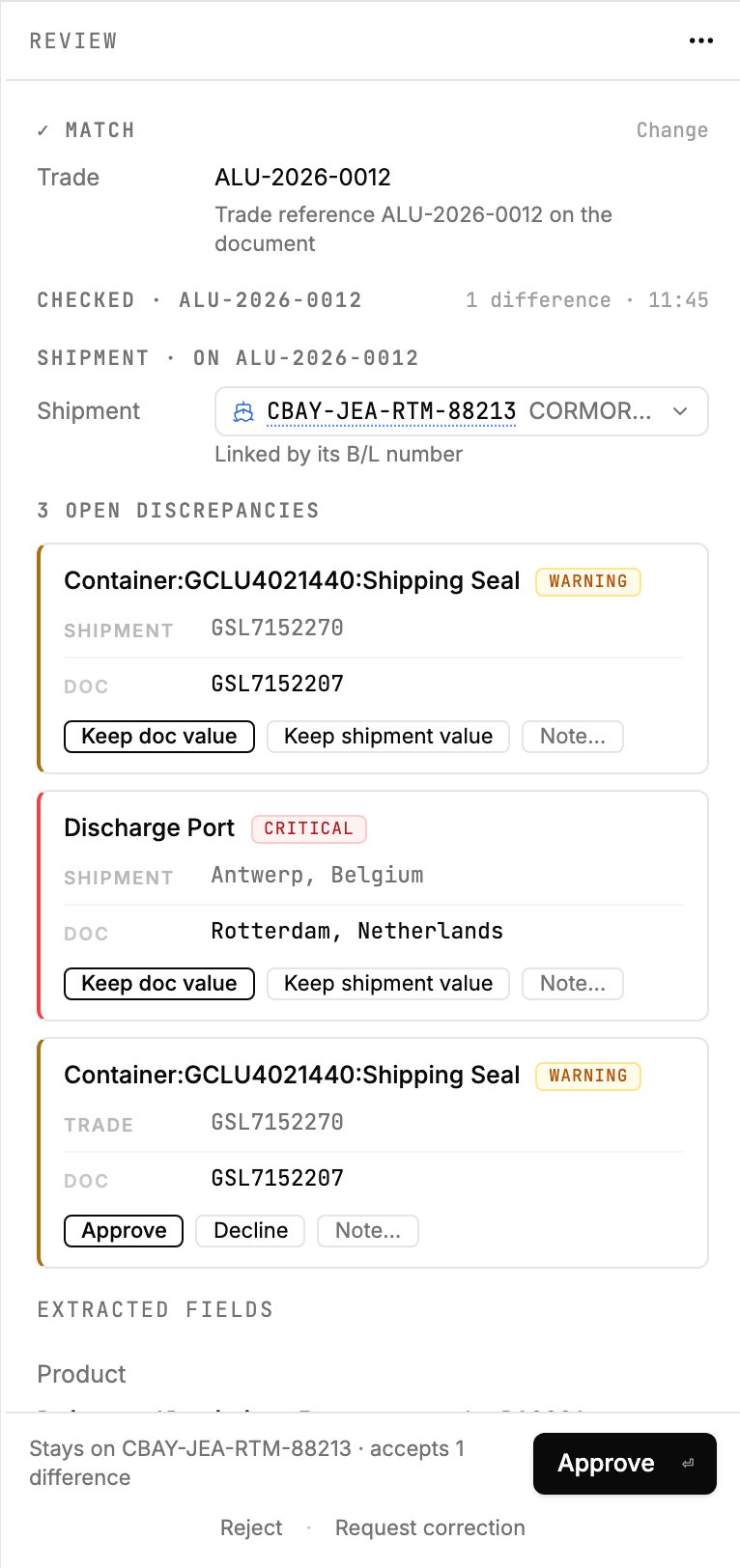
The trade’s Discrepancies tab shows two open warnings on a container seal. Click one to open the document. Each card shows both values, here seal GSL7152207 on the weight certificate against GSL7152270. Choose Approve to accept the difference, Decline if the document must be fixed, or Note… to record why. Against a shipment, choose Keep doc value or Keep shipment value. See Discrepancies.
The weight certificate's seal and discharge port, checked against the shipment and the trade.