What happens to a document from arrival to approval, and why a person always approves.
Mercora reads your trade documents, files them against the right trade and checks them. You make the decisions. This page explains each step and where you stay in control.
You upload it or it comes in by email. Mercora splits a saved email into its attachments, and a scanned pack into separate documents. With Bundle review on, it holds the pack until someone confirms the split.
2
Mercora reads it
It works out the document type and reads the fields that matter, such as parties, references, quantities, prices, dates and vessel. See Document processing.
3
Mercora matches it to a trade
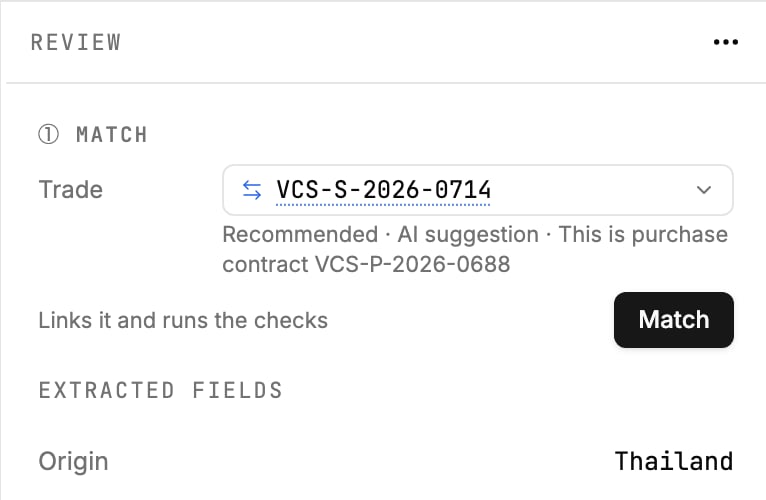
Mercora links a document on its own only when a reference (trade, contract, deal or B/L number) matches exactly one trade, or the match is highly confident. It always shows why. Otherwise it recommends the most likely trade and waits for you to click Match. If a reference fits several trades, it asks you; if nothing fits, the document stays Unmatched. You can change the match at any time. See Matching documents to trades.
The purchase contract doesn't carry the trade's reference, so Mercora recommends a trade, says why, and waits for you.
4
Mercora checks it
It compares the document with the trade and the trade’s other documents, and flags differences such as a quantity outside tolerance or a weight that differs between the B/L and the invoice. See Discrepancies.
5
You review and approve
In the Inbox, you check what Mercora read beside the original, correct anything wrong, settle the discrepancies and click Approve (available once the document is matched and checked). Until you approve, the document isn’t part of your trade records.
Approved data then feeds the trade, its financials, shipments and the P&L, depending on your modules. The walkthrough shows the whole flow on one trade.
Mercora recommends; a person on your team approves.
Nothing counts until approved. Mercora never approves a document or changes your trade records by itself. Workflows such as deal capture, hedging and automations start off, and your admin turns each one on.
You can see why. Mercora shows what it read, where, and why it matched or recommended a trade. When it’s unsure, it says so.
You can change it. Correct a field, move a document to another trade, or reclassify it. Your decisions are kept if the document is processed again. Mercora records who approved and who matched by hand.
The same rule applies everywhere. The Copilot only sees data your role can see, and anything it would do outside Mercora, such as sending an email, waits for your Approve. Workflows and automations put their proposals in the Inbox. Requests sent through the API land in the Inbox too: a hedge request isn’t sent to your broker until someone on your team sends it.