

Available when the Copilot module is turned on for your workspace. Your role needs the Copilot permission, and the Copilot only reads what your role can see. See Roles and permissions.
Ask a question
1
Open Home
Click Home in the sidebar. With the Copilot on, the page is titled Mercora AI.
2
Ask
Type in the message box and press Enter, or click a suggested question such as “Which invoices are overdue?”.
3
Read the answer
You can leave or reload the page while it’s written. Only Stop ends it early.
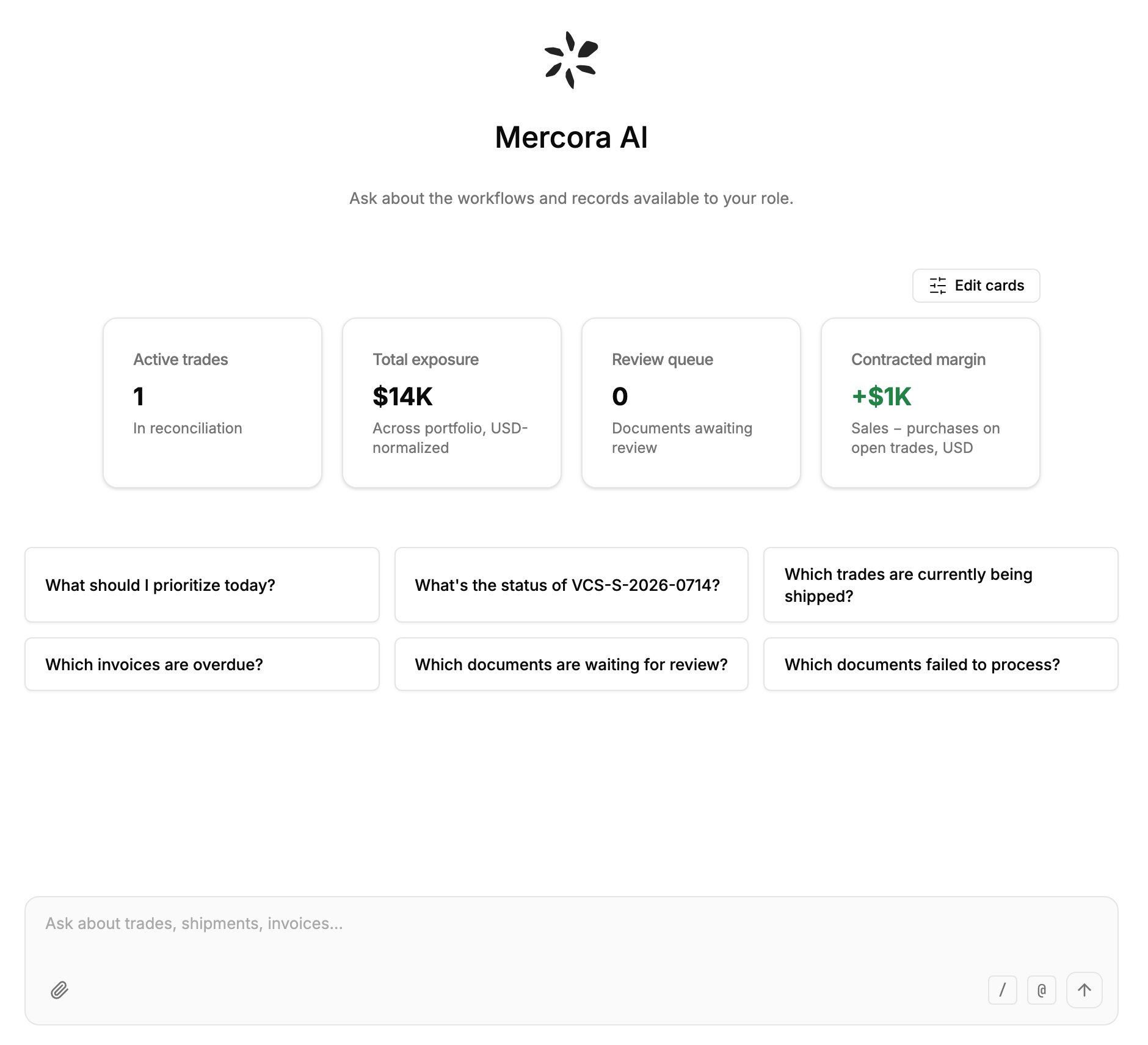
Home with the Copilot on: suggested questions above the message box, which has buttons to attach files, use a skill (/) and mention a record (@).
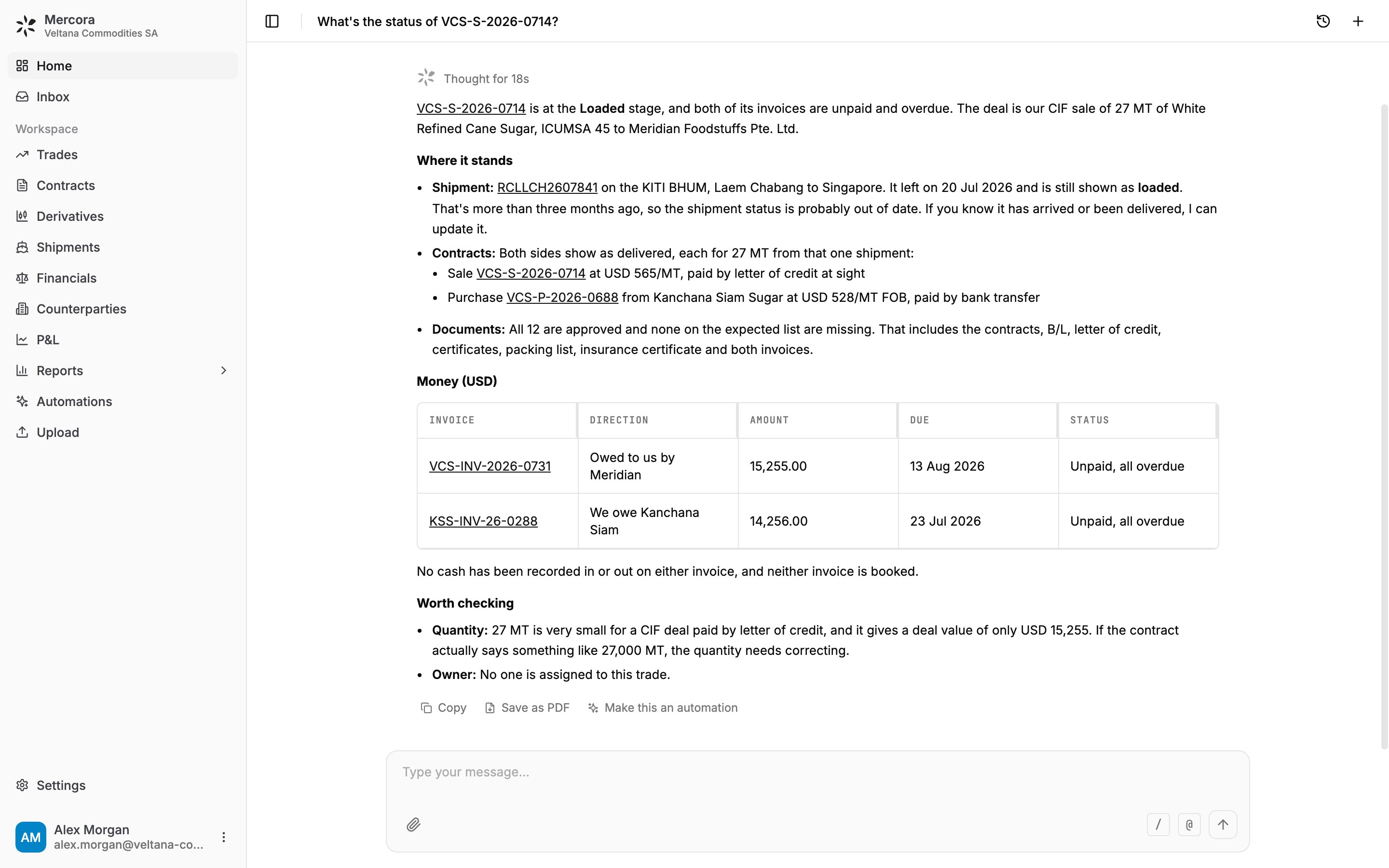
The answer for Veltana's sugar trade: where it stands, the money on each invoice, and what is worth checking.
Records, files and skills
- @ picks a trade, shipment, contract, counterparty or document, so the Copilot looks up exactly that record.
- Attach files (the paperclip, or drag and drop) lets the Copilot read PDF, Word (.docx), Excel (.xlsx, .xlsm), text and images, up to 30 MB each. Save older .doc, .xls or .ppt files in a newer format first.
- / opens your skills, saved instructions for a particular job, and commands such as /trade (Deal capture) and /feedback (a message to the Mercora team). Manage skills opens the Skills page, where you write your own. The Copilot also picks a skill by itself when a question needs one.
Approve changes
The Copilot can propose changes to records your role can edit, such as trades, contracts, invoices and payments, but never makes them on its own. The answer stops on a card showing exactly what will change.- Approve runs exactly what the card shows.
- Edit lets you change the values, then Save and approve.
- Reject writes nothing.
More from a chat
- Make this an automation, under an answer, drafts an automation from what the chat did. Nothing runs until you switch it on.
- Ask Copilot on some Inbox items opens a chat that already knows the item.
- Chat history (the clock button) lists your chats on every device. Chats are private to you, and deleting one is permanent.
- The same Copilot, with the same access, is on WhatsApp and Microsoft Teams. On WhatsApp it runs a change only after you reply yes.
Next steps
- Deal capture: paste a recap with /trade and review the deal in the Inbox.
- Automations: turn a question you ask every day into a standing instruction.