

Before you start: uploading needs the Document upload module and a role that can edit documents. Ask your workspace admin.
Upload files
You can upload from Upload in the sidebar, from Upload at the top of the Inbox, or from a trade’s Documents tab (the trade is then fixed).1
Add your files
Drag files onto the drop zone, or click it to choose them. Click × next to a file to remove it.
2
Leave the type on Auto-detect
Mercora works out what each document is. Only pick a Document Type if every file in this upload is of that type: it applies to all of them.
3
Choose a trade, if you know it
Leave Associate with Trade empty and Mercora matches each document after reading it. If you pick a trade, for example VCS-S-2026-0714, the documents go straight onto it. This field only shows when your workspace uses the Trades module and your role can see trades.
4
Click Upload
Each file shows Uploaded — processing in background when it’s in. You can leave the page. If some files fail, click Upload again to retry only those.
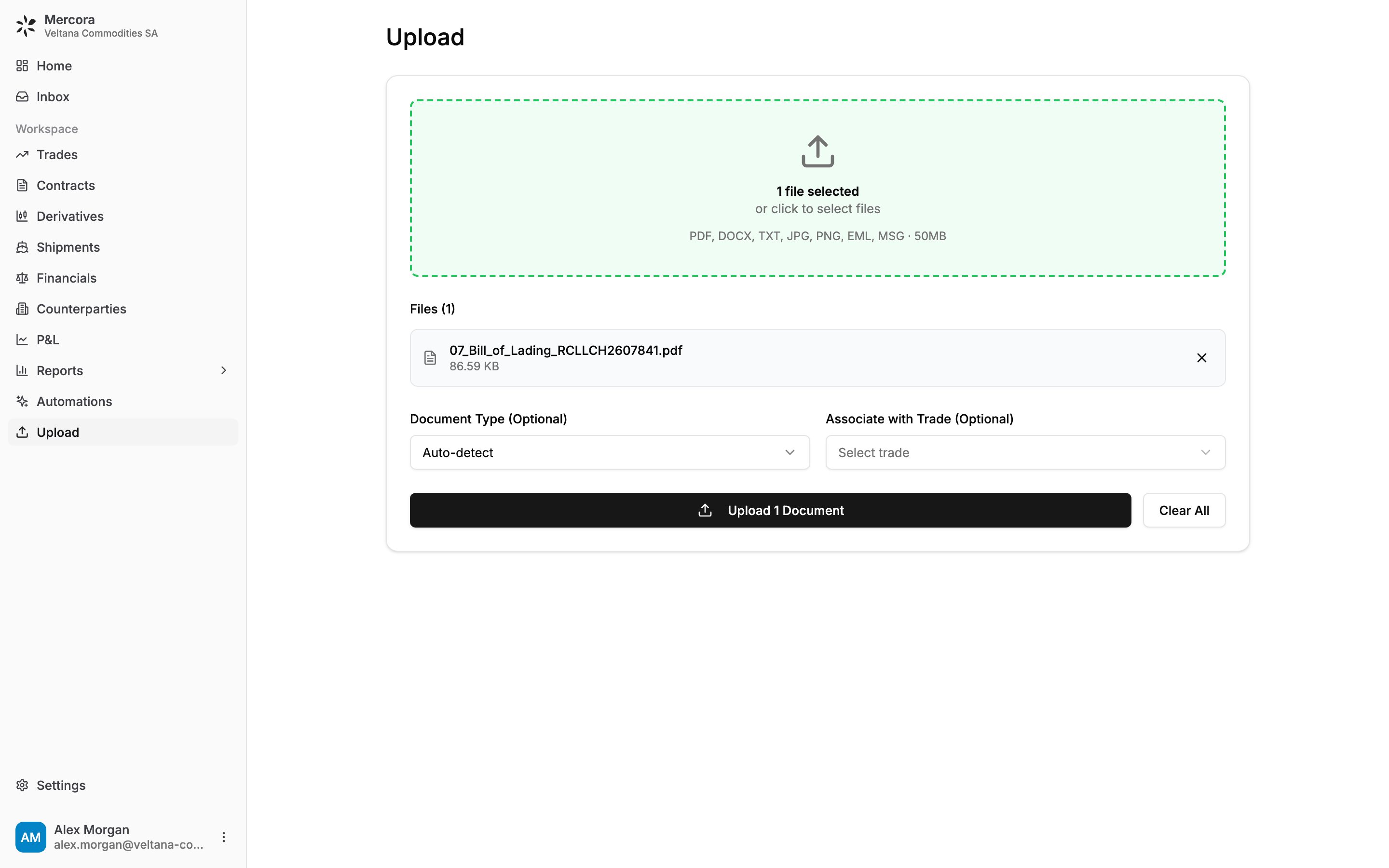
The Upload page with the B/L for sugar trade VCS-S-2026-0714 ready to upload.
Supported files
- PDF (
.pdf), Word (.docx, shown as a PDF for review), images (.jpg,.jpeg,.png) and plain text (.txt). - Saved emails (
.eml,.msg), see below. - Up to 50 MB per file.
.xlsx, .xlsm, .xls, .ods, .csv), or a PDF with the type Carrier rate sheet. These go to the freight rates workflow, not onto a trade.
Saved emails
A saved email is opened like mail arriving in your workspace mailbox: each attachment becomes its own document, and the email shows above the document when you review it. If nothing usable comes out, it appears in the Inbox as Nothing captured from this email, with the reason. Reject or delete it to clear it.Multi-document packs (bundles)
When one PDF holds several documents, such as an invoice, B/L, packing list and certificates, Mercora splits it into separate documents and processes each one on its own. If your workspace uses Bundle review, Mercora holds the pack in Needs you under Review, marked Split review, until someone confirms the split. Nothing in the pack is read or matched until then.Bundle review is a workspace module and is off unless your admin turns it on.
- Open the pack. The right panel lists the documents found, for example “Document 1 · pp 1–3”. Click one to see only its pages.
- Fix any wrong boundary: the scissors icon splits a document in two, the merge icon joins it with the one below, and Reset restores Mercora’s proposal.
- Click Approve split (or Approve edits). To discard the pack, click Reject, then Confirm reject.
Duplicates
Mercora doesn’t upload a file that is exactly the same as one already in your workspace, whether that one was uploaded or emailed. A rescan or re-saved copy is a different file, and a document you deleted doesn’t count. A duplicate’s row says where the existing copy is, for example “Already uploaded on Oct 26, 2026 to VCS-S-2026-0714”. Choose Skip, or Upload anyway to add a second copy.Next steps
- Document processing: what happens to each file, and what to do if one fails.
- The Inbox: review what Mercora read and approve it.