

Needs the P&L module and Reports access in your role. Ask your workspace admin.
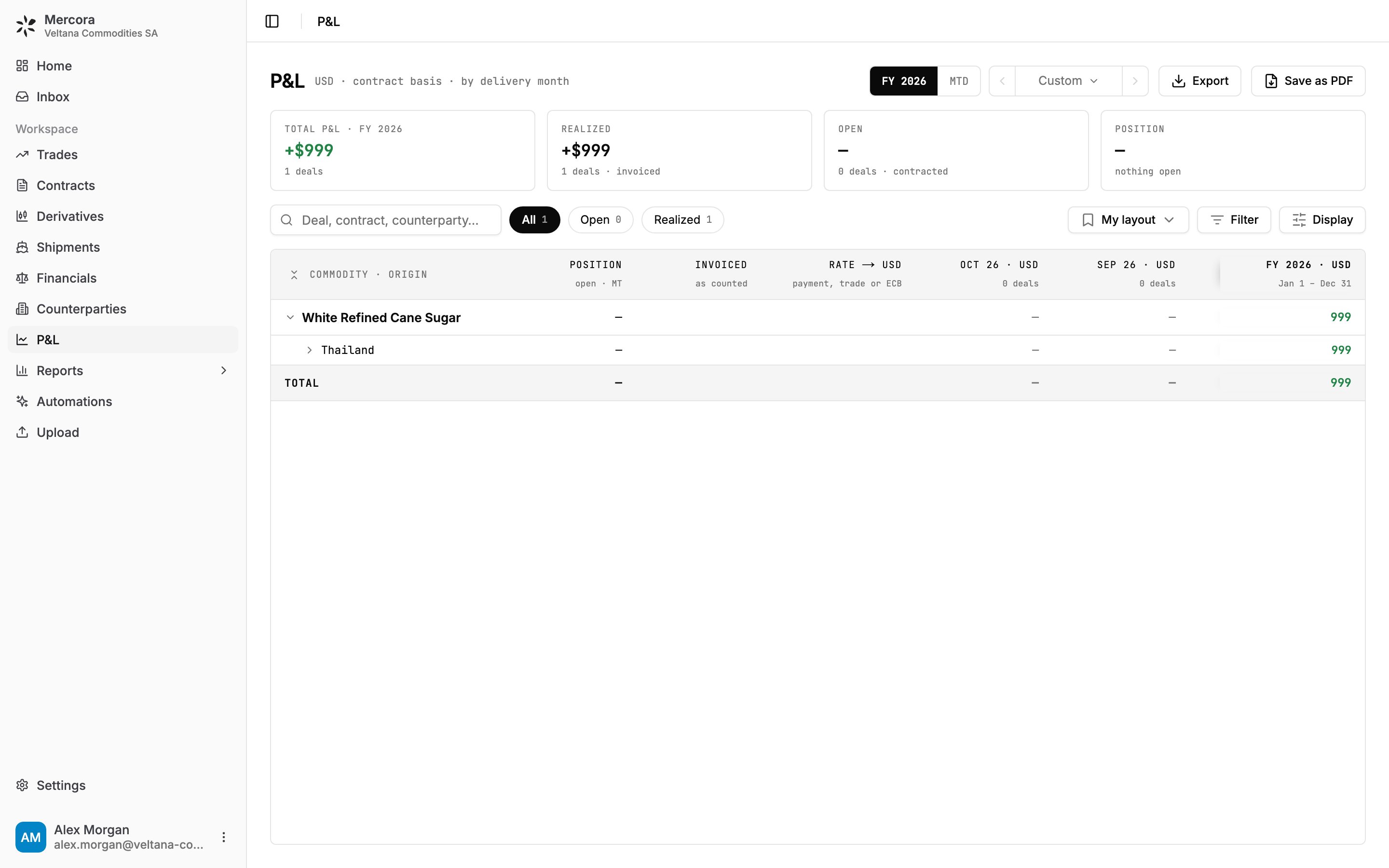
FY 2026 for Veltana Commodities SA: +$999 total, all of it realized on the invoices of VCS-S-2026-0714. With no books set up, the grid groups by Commodity, then Origin.
Read the page
The tiles follow the period, search and filters, but not the All, Open and Realized chips or the State filter.
In the grid, rows are deals grouped on two levels and columns are delivery months, with a period total at the end. Each deal shows its state, such as realized, open · plan or unpriced. Click a deal to open the trade. Display shows or hides each deal’s position, counterparties, invoices and exchange rates.
How each deal is valued
Mercora uses the first basis that applies. The Basis filter shows which deals sit on which.- Cost plan: the trade isn’t complete, its plan has valued income and cost lines, and at least one line is open. The margin is the plan’s Provisional.
- Invoiced, with shipping or billing evidence: invoices on both sides, all convertible. The margin is AR invoiced minus AP invoiced. This is a realized deal.
- Contracted: a purchase and a sale contract, every running contract priced and convertible. The margin is sale value minus purchase value.
- Invoiced, without evidence: as in step 2.
- Otherwise the deal is unpriced: listed, but left out of every total.
Delivery month
Each deal lands in one month, which sets its column and whether it falls in the period.- With shipping or billing evidence: the on-board or B/L date of its earliest approved B/L (ignoring a B/L dated more than 180 days outside the laycan when another fits), or the trade’s creation date if there’s no approved B/L. The sugar deal’s B/L is dated 20 July 2026, so it lands in July.
- Otherwise: the middle of the laycan, then the earliest shipment ETA or ETD, then the trade’s creation date. An expected deal is never placed in the past: if that date has gone by, it lands on today.
Group, filter and set the period
- Display → Grouping and Sub-grouping: Book, Entity, Commodity, Customer, Supplier, Origin or None. The page opens by Book, then Commodity when at least half the deals are in a book, and otherwise by Commodity, then Origin.
- Display → Columns: Recent months (this month and the two before, with the rest folded), Every month, Quarters or Period total.
- Filter by state, entity, book, commodity, origin, counterparty or basis. Search matches deal, contract or counterparty.
- The period control offers your reporting year (for example FY 2026), MTD and Custom. Your admin sets when the year starts in Workspace settings.
Currencies and exchange rates
Display → Currency sets the currency every figure is shown in. Your reporting currency is listed first, marked tenant. When some books are contracted in another currency, Native · as contracted shows each group in its contract currency and consolidates the total.- Contracted and cost plan margins convert at the trade’s FX override, otherwise today’s ECB (European Central Bank) rate.
- Invoices: the paid part converts at the rates on its payments, oldest first, preferring a rate someone typed, then the trade’s override, then the ECB rate filled in when the payment was recorded, then today’s ECB rate. The unpaid part converts at the override, otherwise today’s rate.
Two differences from a trade’s Overview tab: its Invoiced figure converts at the override or today’s rate, so a paid foreign-currency invoice can read differently here. And its Realized means cash received minus cash paid, while a realized deal here is one valued on its invoices.
Save, share and export
- Save as new view… saves your layout as a view only you see. Admins can make it everyone’s starting point with Display → Set as workspace default.
- Export downloads the grid as CSV.
- Save as PDF saves the view as shown. If the columns don’t fit a page, switch to Quarters or Period total.
Next steps
- Trade financials: record payments and plan costs for a deal.
- Reports: operations, cashflow and overdue payments.