

Some pages appear only when their module is on: Books and Entities need P&L, Derivatives needs Derivatives, Contract templates needs Contract drafting, and Freight house rules needs Freight Rates.
Workspace profile
Settings → Workspace → Company profile holds three settings that affect numbers across the product. Click Save after changing them.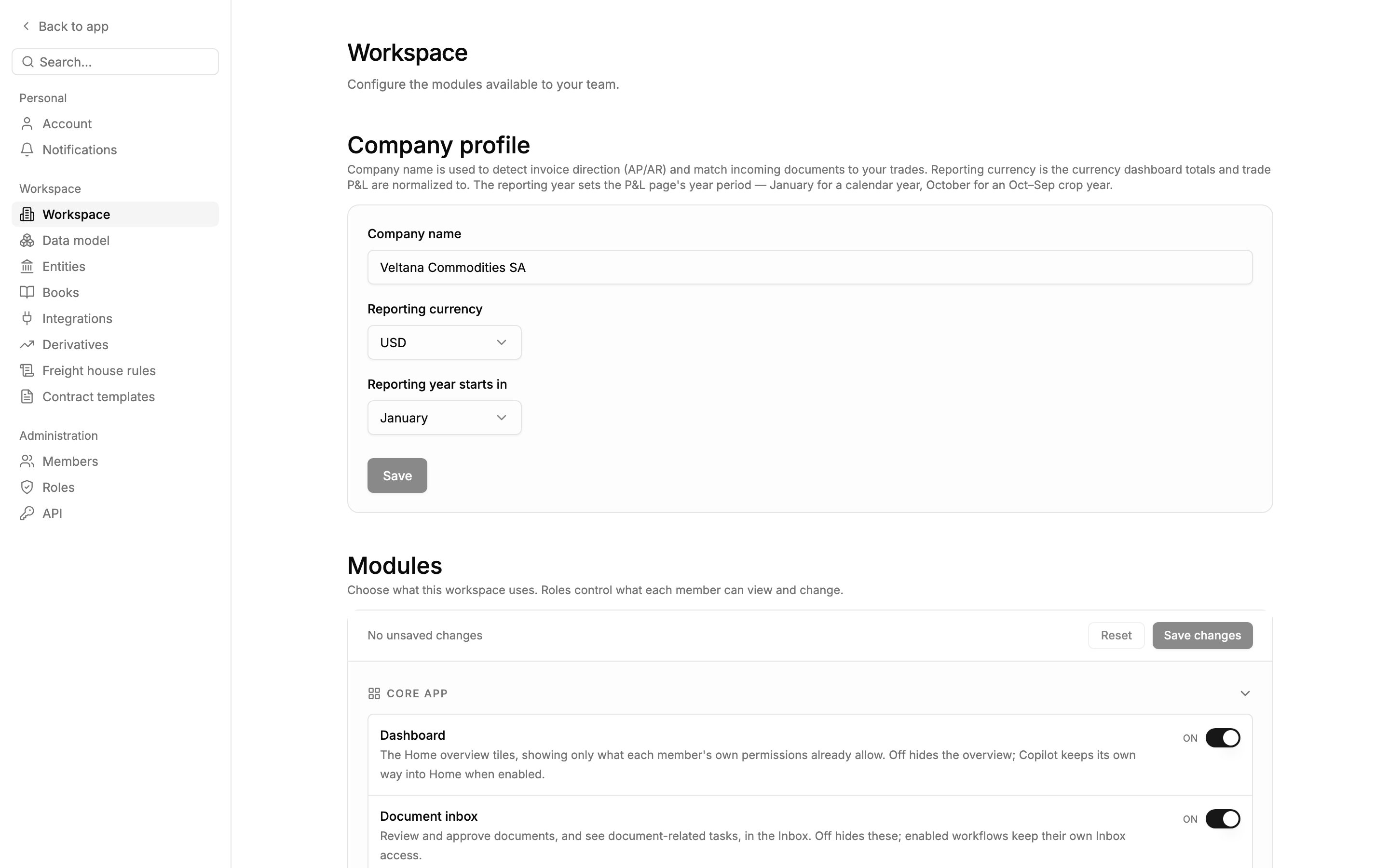
Workspace settings for Veltana Commodities SA, reporting in USD on a calendar year, with the Modules list below.
- Company name: use the name your counterparties print. Mercora uses it to match incoming documents to your trades and to tell invoices you issued (AR) from ones you received (AP).
- Reporting currency: what dashboard totals, trade P&L and reports are converted into (USD, EUR, GBP, CHF, JPY, CNY, SGD or AED). Changing it changes every converted figure; amounts in their own currency, such as an invoice’s face value, don’t change.
- Reporting year starts in: January gives a calendar year (“FY 2026” on the P&L); any other month gives a crop or fiscal year, such as “Crop 25/26” for an October start.
Modules
Settings → Workspace → Modules turns parts of Mercora on and off for the whole workspace. Most start off, and a child module only works while its parent is on (for example, Cost & income plan needs Trade financials, which needs Trades). Members still need the matching access in their role. See Modules.Books
A book is the bucket your firm carries deals in on the P&L, such as an agricultural desk and a metals desk. Set them up under Settings → Books. A deal is in a book when its reference ends in one of the book’s codes, or when someone picks the book on the trade; a pick always wins. A book is never inferred from the cargo. Until you add books, the P&L groups deals by the code at the end of each reference.- Add book: give it a Name and Codes (for example “AGRI, GRAIN”). A code belongs to one book only.
- Codes on your references lists codes no book claims yet: click Add as book or Add to book….
- Delete a book: deals picked into it must be re-picked first (or rename the book instead). Its other deals go back under their reference codes.
Legal entities
Entities are your own companies that deals are booked under, such as Veltana Commodities SA and a sister company. The P&L can group and filter by them. Set them up under Settings → Entities. Each entity has a Name, an optional Code, and Also written as: other spellings your contracts use, one per line. A deal belongs to an entity when your side of its contract carries one of those names. Names no entity covers are listed under Seen on contracts, not set up, and their deals show as No entity: click Add as entity or Add as spelling of…. Once you have entities, members can pick a different entity on a trade, which overrides the contract.Custom fields
Settings → Data model lists Mercora’s records (Contracts, Trades, Shipments, Counterparties, Invoices and Derivatives) and their fields, including where each value comes from and whether Mercora fills it (AI fill: Auto, Suggest or Off). To add your own field, open a record type, click Create field, give it a Name, and choose Text, Number, Decimal (with a Unit, such as MT), Date, Select (with options) or Checkbox. The type and unit can’t be changed later. Your fields appear on each record’s page for anyone who can edit it. Each record type holds up to 50 active fields. Archive a field or a Select option to hide it without losing its values.Invoice categories
Every invoice is filed under one category, such as Cargo, Freight or Insurance, which drives the cost and income plan and report cost breakdowns. Manage them under Settings → Data model → Invoices → Category. You start on Mercora’s standard list; your first change makes it your own. Each category has a kind, which decides how reports treat it:- Add category: give it a name, a kind, and a clear description under When does an invoice belong here? Mercora reads it to file new invoices.
- Change a kind: every invoice under that category moves to the new kind in every report, after you confirm.
- Switch a category off: filed invoices keep it, but it’s no longer offered. The Fallback category (Other), where invoices go when nothing else fits, can’t be switched off.
- Reset: back to the standard list. Invoices under categories you added read as Other until re-filed.