

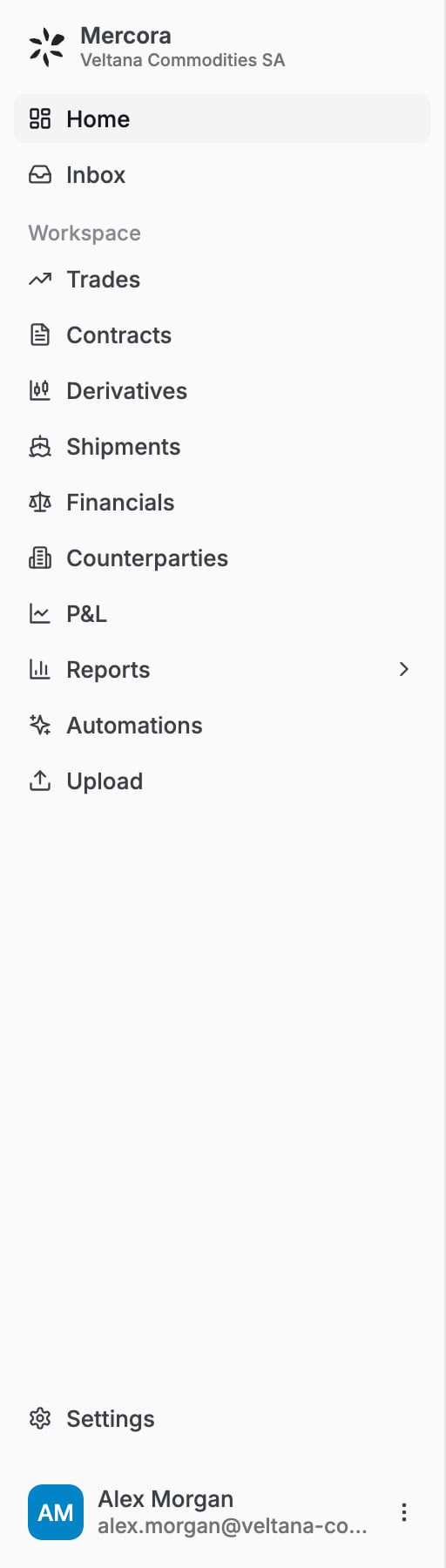
The sidebar: Home and Inbox at the top, the Workspace section, then Settings and your user menu.
The sidebar
Areas appear in this order. “Off” means the module starts off in a new workspace.Inside the main areas
Home has the Mercora AI box, where you ask the Copilot about your trades, and overview cards such as Active trades and Review queue. Admins choose the cards with Edit cards. Inbox is your work queue, split into tabs:- Needs you: you’re the next step.
- Waiting: still processing, or waiting on someone else.
- Done: approved, booked or rejected.
- Filtered: items Mercora set aside as not needing attention.
Settings and your account
Click Settings at the bottom of the sidebar. Everyone sees Account (name, password, two-factor), Notifications and their own Integrations. Admins also see the workspace settings, modules, Members, Roles and API. Members whose role includes User access see Members and Roles. Click Back to app to return. See Workspace settings. Click your name below Settings to open your account, switch between Light, Dark and System themes, or Log out.Next steps
- Walk through a trade: see these areas at work on one trade.
- How Mercora works: follow a document from arrival to approval.