

Permission levels
- None: the area is hidden.
- View: the member can see the area but not change it.
- Edit: the member can make changes: upload, correct, match, approve, create and so on.
Built-in roles
User access, Email and Files are left out on purpose: managing members and acting in the workspace’s shared mailboxes and files are things an admin grants deliberately. You can adjust a built-in role’s permissions, but not delete it or change whether it’s an admin role.
Create a custom role
1
Click New role
Go to Settings → Roles and click New role. Give it a Name, such as “Trade finance”, and optionally a Description.
2
Choose a starting point
Under Copy permissions from, pick No access — start empty or an existing role. Copying happens once and never turns on Workspace admin.
3
Set each permission
Choose None, View or Edit. Use Set all to… for a whole group, or Search permissions… to find one.
4
Click Create role
Then assign it to members under Members.
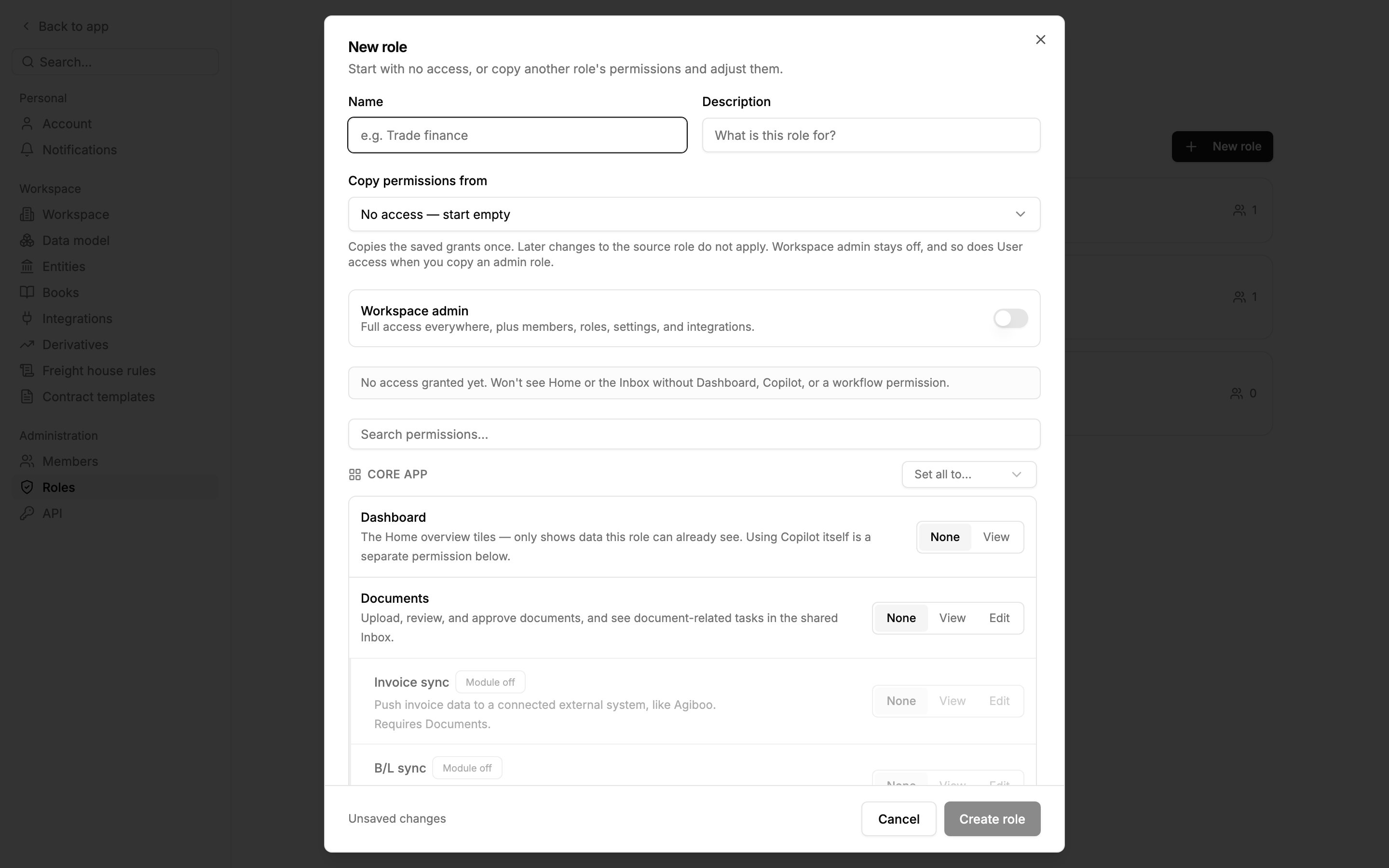
A new role, starting empty. Invoice sync shows a Module off badge and stays greyed out until Documents is at least View.
What each permission covers
Some features need more than one: pushing an invoice to an external system needs Edit on Documents and Invoice sync, plus both modules on.